
You want your computer to run smoother and faster without replacing everything. Start by removing bloatware, disabling unnecessary startup apps, and keeping the OS and drivers updated. You can also get big gains from switching to an SSD or adding RAM. Try a few targeted fixes first — here’s what to try next.
Upgrade Your Hardware
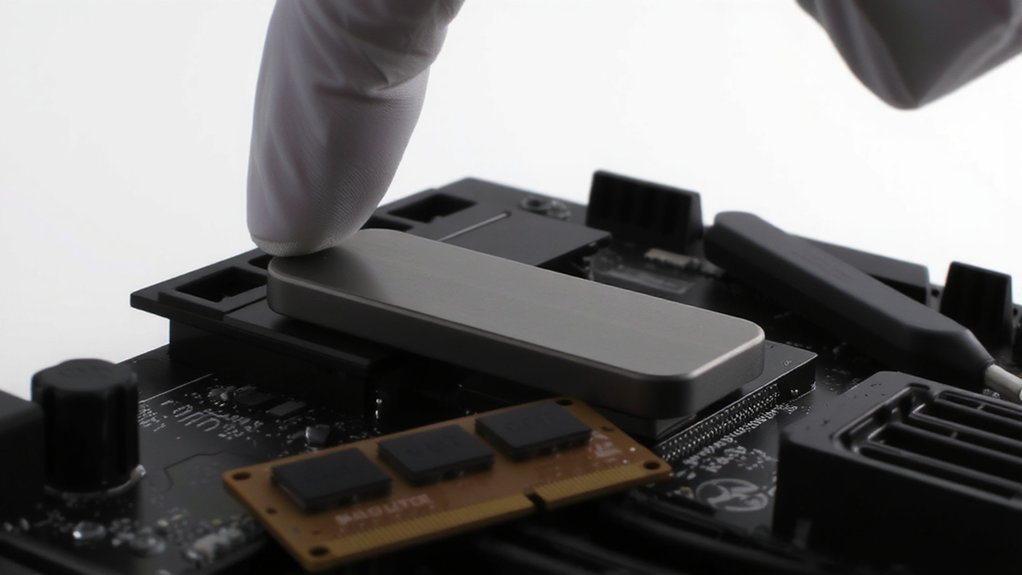
If you want noticeably faster performance, start by upgrading your hardware. You’ll see the biggest gains from adding more RAM, swapping an HDD for an SSD, and choosing a faster CPU or more efficient GPU if you do demanding tasks.
Prioritize upgrades that match how you use the machine: more RAM for heavy multitasking, an SSD for quicker boot and app load times, and a GPU for gaming or graphics work.
Don’t forget a quality power supply and proper cooling so components run reliably at peak speed. If you’re on a laptop, consider upgrading storage and memory where possible or replacing the device if components are soldered.
Buy compatible parts and back up data before you swap anything. You’ll avoid headaches with simple planning.
Optimize Software and Startup

After upgrading hardware, you’ll get the most from it by cleaning up software and controlling what runs at startup.
Remove unused programs and bloatware so less runs in the background.
Audit startup items in Task Manager (or System Configuration) and disable nonessential apps; leave security tools enabled.
Turn off unneeded services and scheduled tasks, but research before changing system services.
Keep your OS, drivers and key apps updated to improve stability and performance.
Replace heavy apps with lighter alternatives when possible.
Trim browser extensions and enable a single fast browser profile.
Run a reputable malware scan and clean temporary files and caches regularly.
Finally, adjust visual effects and power settings for performance rather than appearance.
Monitor resource use with built‑in tools to spot bottlenecks.
Organize and Manage Your Data
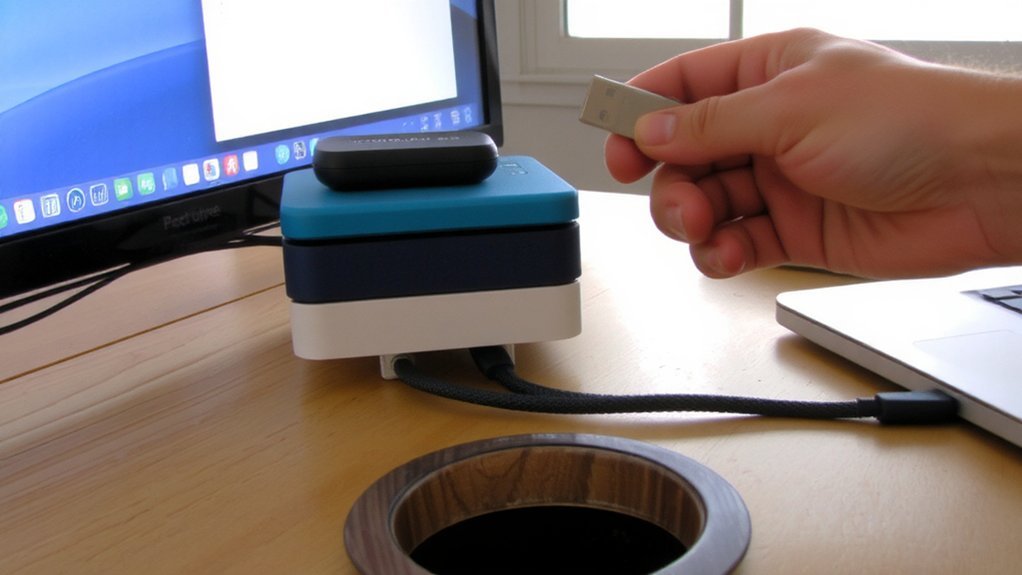
Where do your files belong and how will you find them later? Decide a clear folder structure—Documents, Media, Projects—then stick to it.
Name files consistently with dates and descriptive tags so searches return precise results. Remove duplicates and trash large, unnecessary files; they’ll free space and speed access.
Move infrequently used archives to an external drive or cloud storage to reduce local load, but keep active work on your main drive. Use built-in tools to index locations you use most so searches run fast.
Automate routine cleanups with schedules or scripts to prevent accumulation. Back up crucial data regularly to avoid emergency transfers that slow you down. Review your organization every few months and adjust as your workflows change quickly.
Maintain System Health and Security
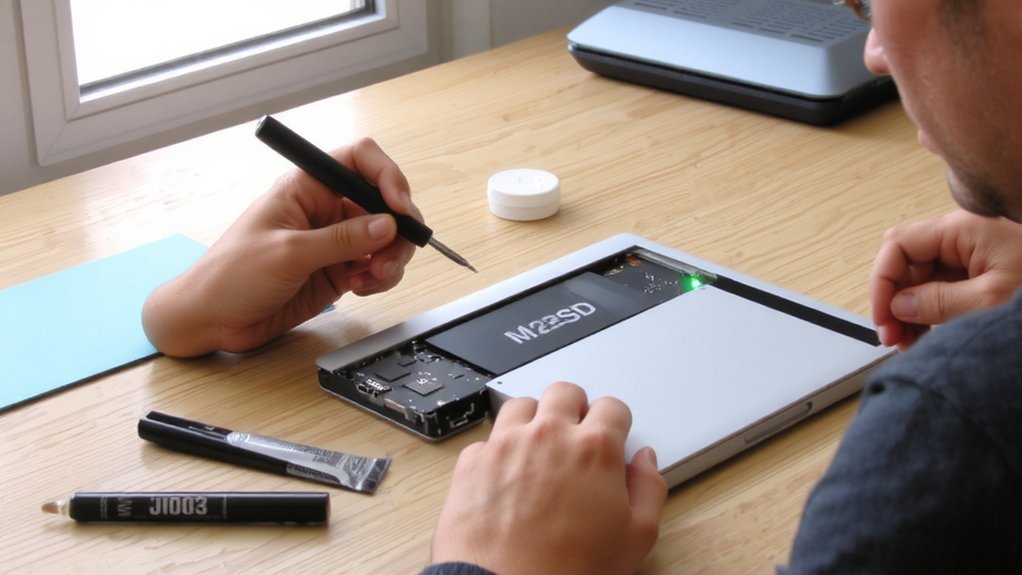
Because malware and neglected updates can cripple performance, keep your OS, drivers, and apps current, run reputable antivirus scans, and monitor disk health and temperatures so you’ll catch problems before they slow you down.
Enable automatic updates where practical and schedule regular full-system scans; use on-demand scanners for second opinions.
Remove unused programs and browser extensions, tidy temporary files, and trim startup apps to reduce boot time.
Check SMART status and run disk error checks; defragment HDDs when appropriate.
Keep firmware and BIOS updated, and maintain reliable backups to restore quickly after failures.
Use a firewall, unique strong passwords, and two-factor authentication for important accounts.
Stay vigilant about suspicious activity and act promptly on alerts.
Periodically test performance with simple benchmarks to confirm gains.
Improve Network Performance and Connectivity
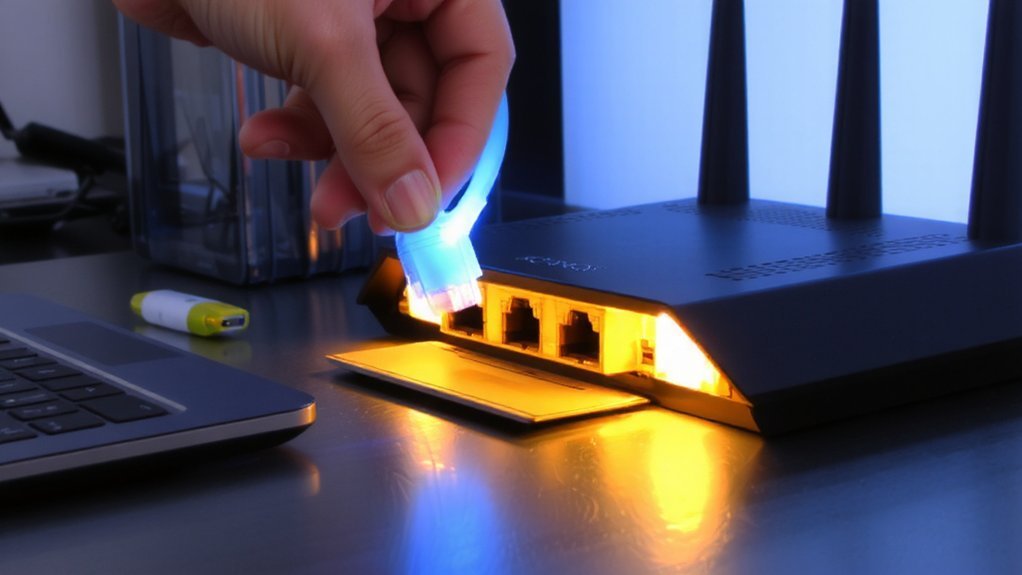
A healthy, secure PC still needs a solid network to reach its potential, so you’ll want to tackle connectivity next.
Check your router placement—central, elevated, and away from interference boosts Wi‑Fi coverage.
Update firmware and change default admin credentials to improve stability and security.
Use 5 GHz or Wi‑Fi 6 if your devices support them for faster, less crowded bands.
For demanding tasks, prefer wired Ethernet; gigabit or 2.5GbE reduces latency and packet loss.
Limit background network hogs by closing cloud syncs or streaming apps during work.
Enable QoS on your router to prioritize important traffic.
Run speed tests and ping checks to spot issues, and contact your ISP if speeds consistently fall below your plan.
Replace aging gear when performance becomes noticeably degraded.
Conclusion
By following these steps you’ll make your computer noticeably faster and more reliable. Start with software: remove bloatware, disable unneeded startup apps, and keep the OS and drivers updated. Clean files, run malware scans, and defragment HDDs when appropriate. Consider upgrading RAM or switching to an SSD for the biggest gains. Finally, organize data, maintain cooling, and use wired Ethernet or tweak network settings so your system stays responsive over time and perform regular backups.