
If you need your Wi‑Fi password, start where it’s most often stored: on the router, in your device’s saved credentials, or inside the router’s admin panel — and you can retrieve or reset it using platform‑specific tools. I’ll explain the quickest, secure methods for Windows, macOS, iPhone, and routers, plus what to do if you can’t recover the current key so you can get back online safely.
Key Takeaways
- Check the label on your router or modem for the factory SSID and passphrase printed on the device.
- View saved Wi‑Fi passwords on a Windows PC via Settings or use an elevated Command Prompt: netsh wlan show profiles.
- On a Mac, open Keychain Access, find the SSID entry, and check “Show password”; iPhone passwords can be shared or viewed on iOS 16+.
- Log into your router’s web interface or companion app (commonly 192.168.0.1 or 192.168.1.1) and view the wireless PSK in Wi‑Fi settings.
- If you can’t recover the password, perform a router factory reset, then reconfigure Wi‑Fi with a strong new password and update firmware.
Check the Sticker on Your Router or Modem
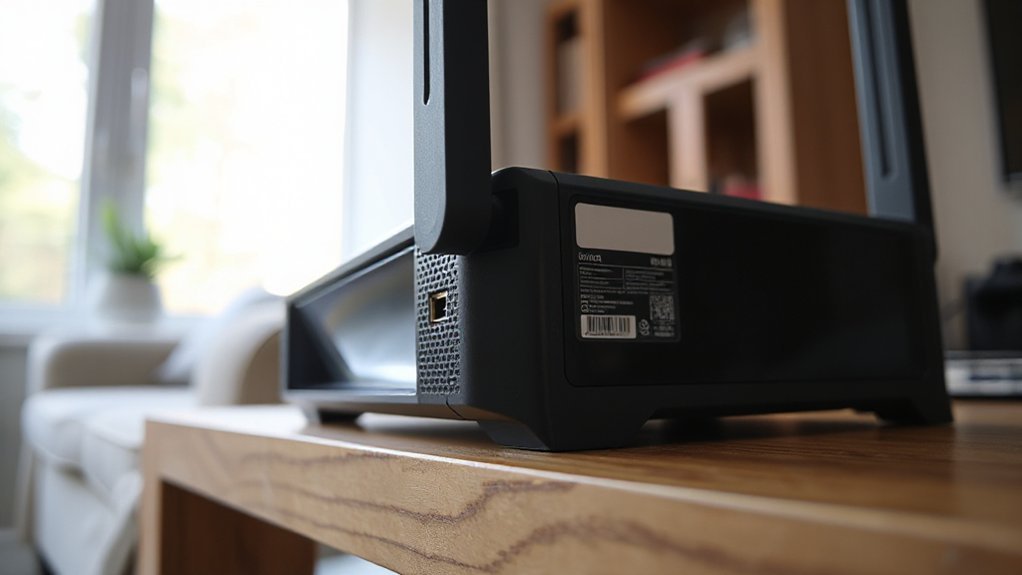
Most routers and modems include a factory-default network name (SSID) and passphrase printed on a label affixed to the device; check the sticker—usually on the underside, back, or side—so you can read the SSID and WPA/WPA2/WPA3 key exactly as configured. You’ll confirm the current credentials when the device hasn’t been reconfigured. Physically inspect the label for fields marked SSID, Key, Passphrase, or WPA Key; note character case and symbols precisely. For deployed equipment, verify firmware version and any service-provider overrides that may alter defaults. Use the printed key to join the network or to log into the router’s admin interface for secure modifications. Maintain strong router security by replacing defaults and integrating password management to store complex keys safely.
View Saved Wi‑Fi Passwords on a Windows PC

If the router’s sticker isn’t available or the device has been reconfigured, you can recover the stored network key directly from a Windows PC that previously joined the network. Open Settings > Network & Internet > Wi‑Fi > Manage known networks to view saved networks. Select the target SSID, choose Properties, then click Show characters under Security settings; you’ll need administrator rights to reveal the WPA/WPA2 password. Alternatively, use an elevated Command Prompt: run netsh wlan show profiles, note the profile name, then netsh wlan show profile name=”SSID” key=clear and read Key Content. For enterprise networks with credential stores or if you centrally manage credentials, consult your password manager or group policy. Export or copy keys only to secure destinations and revoke access if compromised.
Find the Network Key on a Mac or Iphone
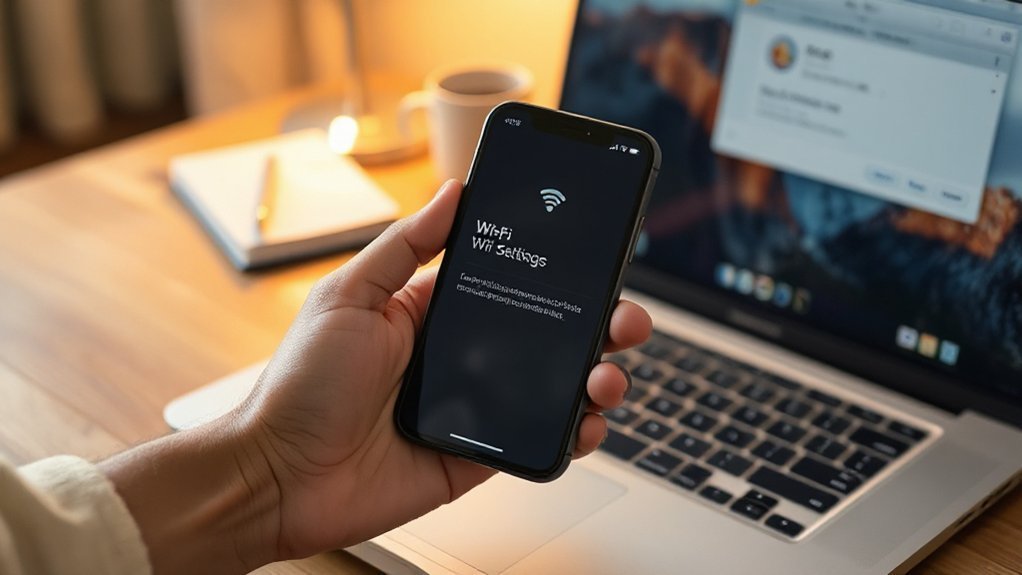
Want to recover the Wi‑Fi network key from an Apple device? On a Mac, open Keychain Access (Applications > Utilities), search the SSID, select the Wi‑Fi entry, then check “Show password” and authenticate with your admin credentials. That reveals the network key stored in the mac keychain. If you use iCloud Keychain and iCloud sync, credentials propagate to your other Apple devices; verify iCloud Keychain is enabled in System Settings > Your Apple ID > iCloud > Keychain.
On an iPhone, go to Settings > Wi‑Fi, tap the connected network, then tap “Share Password” with another nearby iPhone or view the password on iOS 16+ by tapping the info icon and using Face/Touch ID when available. These methods expose the stored network key without accessing router settings.
Access Your Router’s Web Interface or Companion App
When device-based methods don’t reveal the password or you need to change Wi‑Fi settings, access your router’s web interface or companion app to view or reset the network key. First, connect to the router’s LAN or Wi‑Fi, open a browser, and navigate to the router’s IP (commonly 192.168.0.1 or 192.168.1.1). Authenticate with the admin credentials (check the device label if unknown). Locate the wireless or WLAN section to display the SSID and Pre‑Shared Key (PSK). Alternatively, install the vendor companion app, sign in, and use app features to reveal or regenerate the passphrase. While logged in, verify router security settings: WPA2/WPA3 mode, strong admin password, and firmware version. Log out and store the new key securely.
Reset Your Router and Secure the Network Afterward
Although resetting your router clears custom settings and returns the device to factory defaults, you should treat the reset as the start of a controlled recovery process: perform a hard reset only when you can’t retrieve admin access or suspect persistent compromise, then immediately reconfigure security settings before reconnecting clients. After reset, access the router management interface using a wired connection; update firmware to the latest stable build, set a strong unique admin password, and disable remote management unless required. Recreate an SSID with WPA3 (or WPA2-AES fallback), choose a robust passphrase, and enable guest isolation for temporary devices. Harden network security by disabling WPS, restricting UPnP, and configuring DHCP reservations or static IPs as needed. Document settings and back up the configuration.
Conclusion
You can usually recover your Wi‑Fi password quickly: check the router/modem sticker for the default SSID and passphrase, inspect saved network profiles on Windows or Keychain on macOS, and use iPhone sharing for nearby Apple devices. If needed, log into the router’s web interface or companion app to view or change credentials. As a last resort, reset the router, then reconfigure SSID, set a strong WPA3/WPA2 passphrase, and update firmware.