
You’ll first put your headphones in pairing mode and make sure they’ve got battery, then enable Bluetooth on your phone, tablet, or computer. Follow device-specific pairing steps—iPhone/iPad, Android, or Windows—and accept any prompts or PIN requests. If audio doesn’t route correctly or connection drops, there are quick fixes to try next that usually resolve the issue.
Key Takeaways
- Charge and power on the headphones, then enable pairing mode (LED blink or voice prompt) per the manual.
- Turn on Bluetooth on your phone, tablet, or computer in Settings, then scan for nearby devices.
- Select your headphone name from the device list and confirm any PIN prompts (common PINs: 0000 or 1234).
- After pairing, choose the headphones as the audio output and select the high-quality profile (A2DP) if available.
- If pairing fails, move devices within 1 meter, remove previous pairings, restart both devices, or perform a factory reset.
Preparing Your Headphones for Pairing
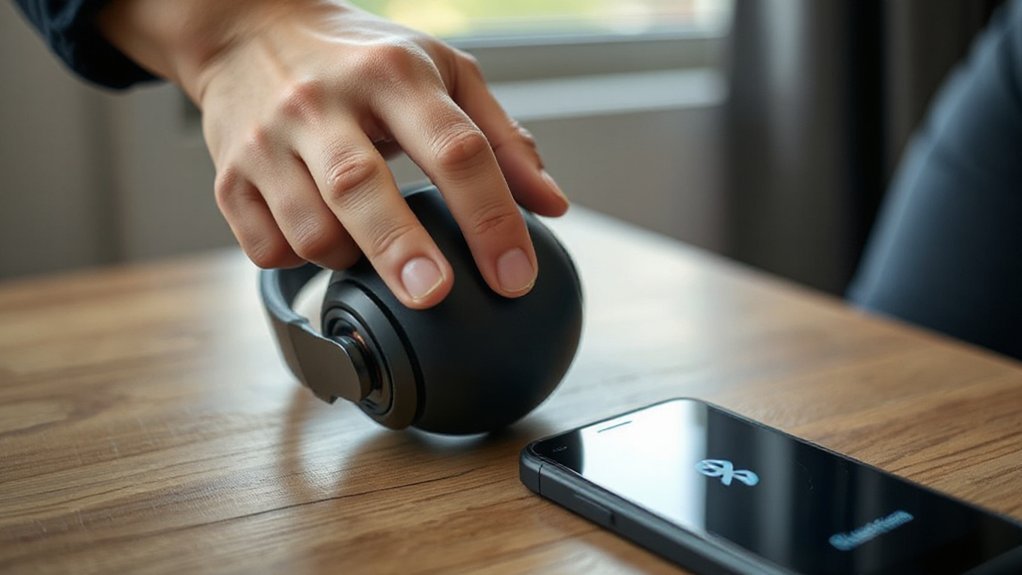
Before you start pairing, make sure your headphones are charged, powered on, and in pairing mode — check the LED pattern or manual for the exact sequence. You’ll confirm Bluetooth visibility by watching the LED blink or hearing the voice prompt; if the device isn’t visible, exit and re-enter pairing mode. Perform a headphones reset when connectivity errors persist: follow the manufacturer’s button sequence to clear previous pairings and restore default settings. After reset, re-initiate pairing mode and verify visibility on the device list. Keep the headphones within 1 meter of the source and disable interference sources like Wi‑Fi routers if scans fail. Note model-specific quirks in the manual and update firmware when available to prevent recurring visibility or pairing issues.
Turning On Bluetooth on Your Device
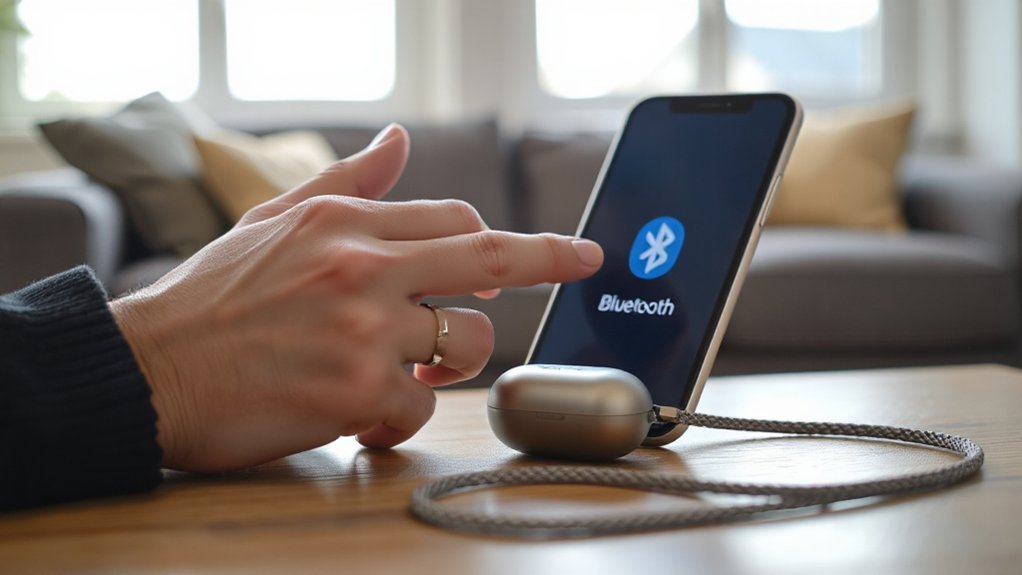
With your headphones visible and in pairing mode, enable Bluetooth on the source device so they can find each other. Open Bluetooth settings from Quick Settings, Control Center, or the system tray depending on your OS. Toggle Bluetooth on, then scan for nearby devices. Verify device compatibility by checking the headphones’ supported Bluetooth version and codecs against your device’s specs; mismatches can limit features but usually won’t prevent basic audio. If Bluetooth won’t turn on, restart the device, update firmware or drivers, and make certain airplane mode is off. For shared or corporate devices, confirm admin restrictions aren’t blocking Bluetooth. Keep the source device within 1–3 meters of the headphones while you complete pairing to avoid signal issues and failed connections.
Pairing Steps for Iphone and Ipad

1) Put your iPhone or iPad within a couple of feet of the headphones and keep both devices open and awake. On the headphones, enable pairing mode per the quick-start: hold the pairing button or power button until an LED flashes or voice prompt confirms. On your iPhone/iPad, open Settings > Bluetooth and confirm Bluetooth compatibility by checking the device list and system version requirements. When the headphones appear under Other Devices, tap their name to pair. If prompted, accept pairing or enter a PIN shown by the headset manual. After pairing, review headphone features in Settings > Bluetooth (tap the info icon) to enable call audio, media audio, or noise control. Test playback and microphone to verify the connection.
Pairing Steps for Android and Windows
If you’re pairing on Android or Windows, keep the devices close and awake, put the headphones into their pairing mode (hold the designated button until the LED flashes or a voice prompt sounds), then on Android open Settings > Connected devices > Pair new device (or Settings > Bluetooth), and on Windows open Settings > Bluetooth & devices > Add device and choose Bluetooth. After the OS scans, select your headphone name; confirm any PIN prompts (0000 or 1234 are common). Check system audio output after connection. If your device lists multiple profiles, pick A2DP for high-quality media. Verify Bluetooth compatibility in device specs if the model doesn’t appear. Review Headphone features like multipoint, codec support (aptX, AAC, SBC), and battery status in the companion app or Bluetooth settings for ideal operation.
Troubleshooting Common Connection Problems
Because wireless links can fail for many reasons, start troubleshooting by isolating variables: keep the headphones and source within a few feet, disable other Bluetooth devices and Wi‑Fi hotspots that may cause interference, and confirm both devices have sufficient battery and are running recent firmware or OS updates. Next, verify device compatibility and supported Bluetooth profiles (A2DP, HFP). If pairing fails, remove the headset from the source’s Bluetooth list, power‑cycle both units, and attempt discovery again. For intermittent audio dropouts, check for RF noise, move away from USB‑3 ports and microwaves, and test with a different source to rule out the headset. If latency or codec mismatch appears, force a compatible codec or update drivers. Persistent connection issues may require factory reset or vendor support.
Conclusion
You’ve prepared your headphones, enabled Bluetooth, and followed the platform-specific pairing steps, so your device should now route audio to the headset for media and calls. If it doesn’t, retry pairing, check battery and proximity, clear previous device pairings, and update firmware or OS. Use device audio settings to select the headset and confirm mic/input for calls. With these checks you’ll restore reliable wireless audio quickly and keep connections stable.