

You’ll first charge and power on the headphones, then put them into pairing mode. On your device, open Bluetooth settings and pick the headset from the available devices. Confirm any prompts and test audio and the mic. If pairing fails, try resets, proximity, or driver updates—keep going for quick fixes and more pairing tips.
Key Takeaways
- Charge and power on the headphones, then activate their Bluetooth pairing mode following the manual.
- On your phone, tablet, or computer, open Settings > Bluetooth and turn Bluetooth on.
- Scan for available devices and select your headphone name from the list.
- Confirm any passcode or pairing request, then set the headphones as the default audio device.
- If connection fails, restart both devices, clear old pairings, reduce interference, and try pairing again.
Preparing Your Headphones and Devices for Pairing

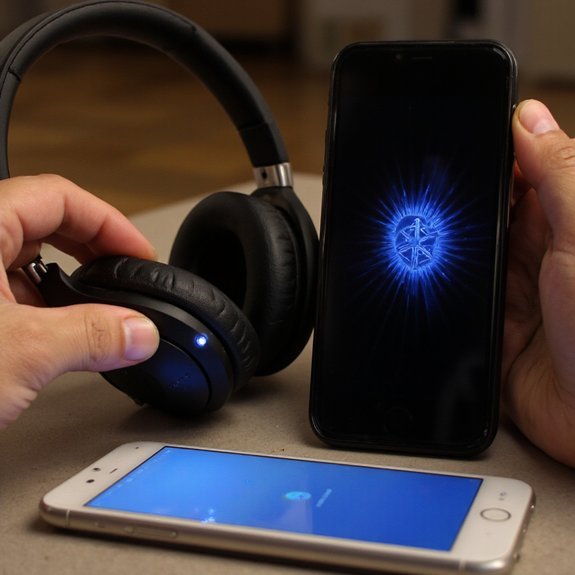
Before you start pairing, charge your headphones, turn them on, and put them into pairing mode (check the manual for the exact button press), then bring them within a few feet of your device. Start by checking battery life: plug in briefly if level is low so pairing won’t fail mid-setup. Next, inspect device compatibility—confirm your source supports the Bluetooth version and codecs your headphones use. Power-cycle both products to clear transient faults. Close other apps or devices that might interfere and disable competing Bluetooth connections. Update firmware on headphones and operating system on your device if updates are available; that improves stability and feature support. Enable Bluetooth on your device, but don’t initiate pairing yet. Note any security settings like passcodes or approval prompts so you’re ready when pairing starts. Finally, keep headphones and device stationary and in clear line of sight to minimize interference during connection
Pairing With Smartphones and Tablets
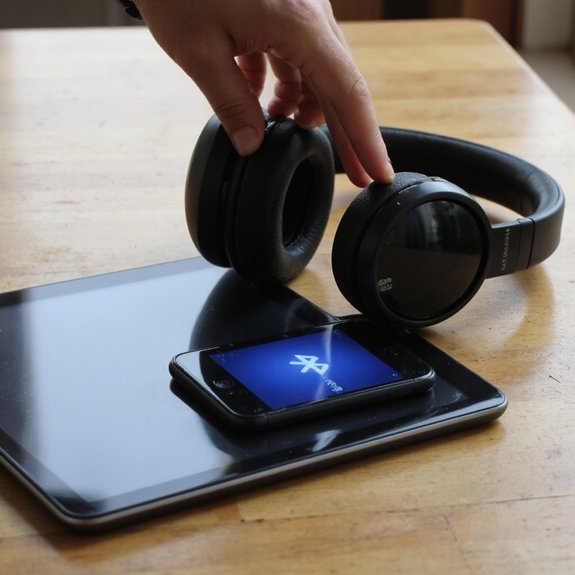
Now that your headphones and device are ready, follow these steps to pair with a smartphone or tablet. 1) Open Settings > Bluetooth on your phone or tablet and toggle Bluetooth on. 2) Put your headphones into pairing mode — watch the LED or listen for a prompt. 3) On your device, scan for available devices and select your headphone name when it appears. 4) If prompted, confirm a passcode or accept the pairing request. 5) Test audio playback and microphone functionality. Tip: If connections fail, restart both devices and retry. Check device compatibility — verify your phone or tablet supports the same Bluetooth protocols as your headphones (for example, LE Audio or aptX) to access advanced features. Keep firmware updated on both sides to improve stability and performance. For multi-device switching, use the headphones’ manufacturer app when available to manage pairings and prioritize innovative connection behavior.
Pairing With Computers and Laptops
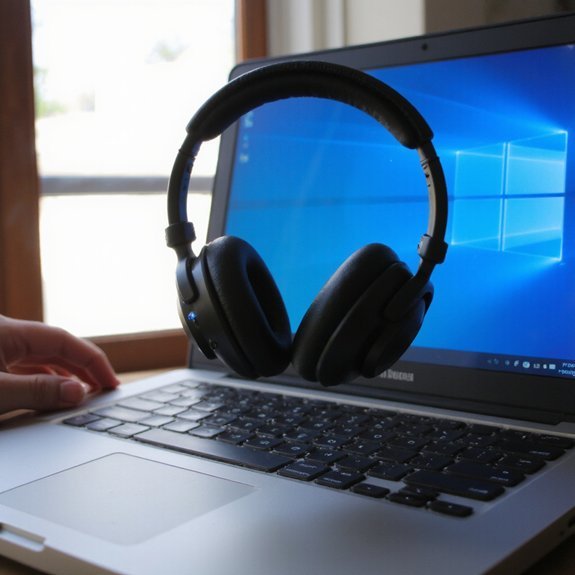
When pairing with a computer or laptop, make sure Bluetooth is turned on and your headphones are in pairing mode. Open your Bluetooth settings, scan for devices quickly, and select your headphones. If prompted, accept pairing or enter the shown code. Troubleshoot by verifying device compatibility and updating drivers or OS.
- Check Bluetooth settings for discoverability and power.
- Confirm your headphones support the computer’s Bluetooth version.
- Restart Bluetooth or the device if pairing fails.
You’ll want to optimize audio output: set the headphones as the default playback device and adjust sample rate if available. For innovation-focused workflows, enable low-latency codecs in advanced settings when supported. If your laptop lacks Bluetooth, consider a USB adapter that lists compatible profiles. Keep firmware current on both ends to avoid glitches. Once paired, you’ll reconnect automatically in most cases; if not, remove the device and repeat the pairing sequence.
Pairing With Smart TVS and Game Consoles
If your smart TV or game console supports Bluetooth, put your headphones into pairing mode, open the system Bluetooth menu, and start scanning. Then select your headset from the list and confirm pairing. If it doesn’t appear, check the device’s Bluetooth settings for “discoverable” or “pair new device.” Use a low-latency codec or dedicated game mode when available to preserve audio quality. For consoles that don’t support direct pairing, consider a compatible devices Bluetooth transmitter that plugs into optical or USB audio out.
| Device Type | Recommended Action |
|---|---|
| Smart TV | Use system Bluetooth menu |
| Game Console | Use console settings or external transmitter |
| Universal Fix | Use low-latency transmitter |
After pairing, test volume and latency in a quick clip. Keep firmware updated on both headset and source to maintain compatibility and best audio quality. You can switch inputs or codecs in settings to optimize performance for different compatible devices and scenarios.
Troubleshooting Common Connection Problems
Although connection problems can stem from many causes, you can troubleshoot them quickly by following a few organized steps: Start by confirming your headphones are charged and in pairing mode. Check the device’s Bluetooth settings and make sure Bluetooth is on. Power-cycle both devices and move closer to reduce interference.
Confirm your headphones are charged, in pairing mode, Bluetooth enabled, then restart devices and reduce interference.
- Restart Bluetooth on your device and re-pair.
- Clear paired-device list on headphones and phone, then reconnect.
- Update firmware and device OS to latest versions.
If you’re still facing connection issues, isolate the problem: try another phone or laptop to see if headphones work, or test other headphones with your device. Disable nearby Wi‑Fi or USB‑C audio adapters that may cause interference. If latency or dropouts persist, enable low-latency codec support in Bluetooth settings when available. Contact the manufacturer with logs or serial numbers if basic steps fail; they can provide targeted diagnostics or replacement. and save time overall