
You can easily share videos, photos, and apps from your phone to your TV using several simple methods, and the best choice depends on your devices and whether you want wireless convenience or a wired, stable connection. If you have a Chromecast, Apple TV, Miracast‑capable TV, or a smart TV with built‑in apps, you’ll follow different quick steps — and a few troubleshooting tips will save you time when things don’t connect.
Key Takeaways
- Use Chromecast or similar dongle: plug into HDMI, set up in Google Home, then tap the Cast icon in apps to stream.
- Use AirPlay with an Apple TV or AirPlay‑enabled TV: open Control Center and select your TV on the same Wi‑Fi network.
- Use Miracast/Wi‑Fi Direct for Android: enable Screen Mirroring on phone and put the TV in pairing mode to mirror your display.
- Use a wired adapter (USB‑C or Lightning to HDMI) for stable, low‑latency mirroring when wireless isn’t reliable.
- Use built‑in smart TV apps or DLNA: enable media sharing on the TV and use a DLNA‑capable player app on your phone to play local files.
Wireless Casting With Chromecast and Google Cast

If your TV has Chromecast built‑in or you have a Chromecast dongle, you can wirelessly stream video, audio, and your phone screen with just a few taps. Start by connecting the Chromecast to your TV’s HDMI and power, then follow the Chromecast setup in the Google Home app to link the device to your Wi‑Fi network. Open a cast‑enabled app, tap the Cast icon, and choose your TV — that’s Google Cast in action. For mirror streaming, use your phone’s screen cast option (Android) or a Cast‑capable app. Control playback and volume from your phone; the stream runs through the Chromecast, not your device, so you can pause or close apps without stopping playback. Keep firmware and apps updated.
Airplay: Streaming From Iphone to Apple TV or Airplay‑Enabled TVS
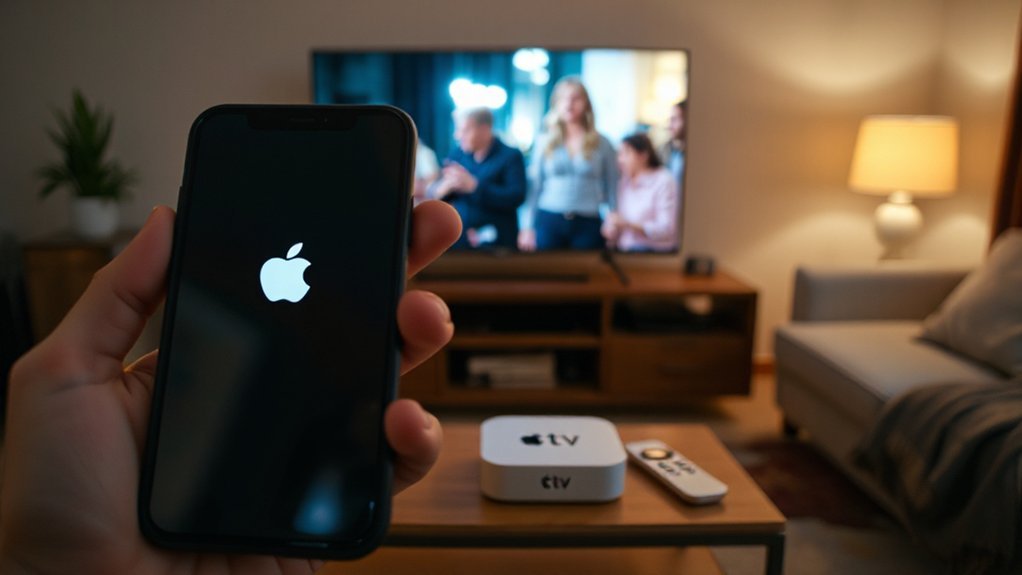
Before you try AirPlay, check that your iPhone and the Apple TV or AirPlay‑enabled TV support the same AirPlay version. Make sure both devices are on the same Wi‑Fi network so they can see each other. Then use the AirPlay control in Control Center or the app’s casting icon to start streaming.
Check Compatibility First
When you want to stream from an iPhone, check that your TV supports AirPlay or that you have an Apple TV box, because the phone uses AirPlay to mirror or send video and audio. Start by confirming your phone models: most iPhones running recent iOS versions support AirPlay, but very old models may not. Check the TV’s specifications or the manufacturer site for “AirPlay” or “AirPlay 2.” If you’re unsure, look for firmware updates on the TV that add AirPlay support. Also verify that your Apple TV model supports the iOS version on your phone. Run quick compatibility checks before you try streaming so you won’t troubleshoot connection issues later.
Connect to Same Wi‑Fi
Since AirPlay streams over your local network, make sure your iPhone and Apple TV (or AirPlay-enabled TV) are on the exact same Wi‑Fi network so they can discover each other and connect reliably. Open Wi Fi settings on your iPhone and confirm the SSID matches the TV’s network. On the TV, check its Network connection menu to verify it’s connected to the same SSID and that the signal is strong. If either device shows a different network or “Not connected,” reconnect them to the same router. For dual-band routers, pick the same band (2.4 GHz or 5 GHz) on both devices if possible. Restarting the router, iPhone, or TV can clear temporary network connection issues and restore AirPlay discovery.
Use Airplay Controls
1. Open Control Center on your iPhone (swipe down from the top-right on newer models or up from the bottom on older ones). Tap Screen Mirroring or the AirPlay icon, then choose your Apple TV or AirPlay-enabled TV. Follow any on-screen prompts to complete AirPlay setup, like entering a code shown on the TV.
Once connected, use playback controls on your phone to pause, skip, adjust volume, or stop mirroring. In apps like Photos or Music, tap the AirPlay icon to stream specific content without mirroring the entire screen. Be aware of AirPlay limitations: some protected content or certain apps may block mirroring, and lag can occur over weak Wi‑Fi. If you hit issues, restart devices and check your network.
Miracast and Screen Mirroring for Android and Windows Phones
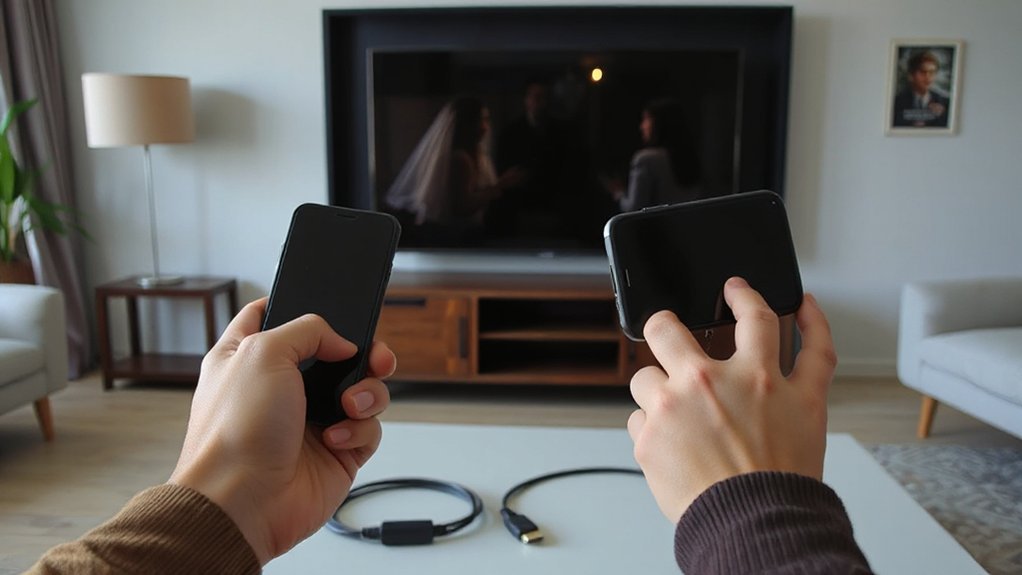
If your phone and TV both support Miracast, you can mirror your screen wirelessly without extra apps or cables; Miracast creates a direct Wi‑Fi connection that streams whatever’s on your device — apps, photos, videos, or the entire display — to the TV in real time. Check Miracast support in the TV manual or settings and open Screen mirroring settings on your Android or Windows phone (often called Cast, Smart View, or Project). Put the TV into pairing mode, then select it from your phone’s list. Accept the connection on the TV if prompted. Miracast mirrors everything, so audio and notifications show on the TV. To stop, use the same menu to disconnect. Troubleshoot by updating firmware, restarting devices, or moving closer to improve signal.
Wired Options: HDMI, USB‑C to HDMI, and Lightning Adapters
If you prefer a stable, lag-free picture, a wired HDMI connection is the simplest choice: plug a compatible HDMI cable or an HDMI adapter into your phone and the TV. For phones with USB‑C, a USB‑C to HDMI adapter or cable will mirror video and audio directly, while iPhones need a Lightning-to-HDMI (Lightning Digital AV) adapter. Check your phone’s port and the adapter’s specs so you get the right cable and support for the resolution you want.
HDMI Cable Connection
Wired connections give you a reliable, low‑latency way to mirror or extend your phone’s screen to a TV, and HDMI is the most common option. Choose the right HDMI cable types for resolution and refresh rate — Standard, High Speed, Premium, and Ultra High Speed — and check the HDMI standards comparison to match your phone and TV capabilities. Use a good-quality cable and keep it short to avoid signal loss; active cables help for long runs. If your phone has a USB‑C port with DisplayPort Alt Mode, a USB‑C to HDMI cable works directly. For iPhones you’ll need a Lightning adapter (discussed elsewhere), but with a direct HDMI path you’ll get the best reliability, full audio, and minimal lag.
Phone-To-Hdmi Adapters
When you want the simplest, most reliable way to get video and audio from your phone to a TV, a direct adapter is usually the best choice. Choose the right adapter types: HDMI for phones with full-size ports, USB‑C to HDMI for most modern Androids, and Lightning adapters for iPhones. Check phone compatibility before buying — some phones require specific MHL or DisplayPort Alternate Mode support. Connect the adapter to your phone, plug an HDMI cable into your TV, and select the HDMI input. You’ll get low-latency mirroring and full audio. If your adapter needs external power, plug it in. Keep cables short for the cleanest signal, and update your phone’s OS if you see connection issues.
Using Smart TV Apps and DLNA for Media Playback
Because most smart TVs come with built-in streaming apps and DLNA support, you can often play photos, music, and videos from your phone with just a few taps. First, verify your phone and TV are on the same Wi‑Fi network. Open a compatible smart tv apps or media app on the TV (YouTube, VLC, or a vendor app) and use the phone’s cast or play-to option. For dlna media, enable the TV’s DLNA/Media Share and use a DLNA-capable player on your phone to browse and stream files directly. Control playback, playlists, and subtitles from your phone. This method avoids cables, keeps quality high for most files, and works well for sharing local content and quick streaming between devices.
Troubleshooting Common Connection and Playback Issues
If you run into connection or playback problems, start by isolating the issue so you can fix it quickly. Check whether the problem is your phone, the TV, the app, or the network. Reboot devices, update apps and firmware, and retry the method (HDMI, casting, or DLNA). For persistent connection errors or playback lag, follow targeted steps:
- Test a different app or local video to rule out streaming issues.
- Swap cables or try another HDMI port to eliminate hardware faults.
- Move closer to the Wi‑Fi router or switch to 5 GHz to reduce lag.
- Reset network settings on your phone and restart the TV for stubborn errors.
If problems persist, consult support for your phone or TV with notes on steps you’ve already tried.
Conclusion
Now that you know the main ways to connect your phone to your TV, pick the method that fits your devices and situation: Chromecast or AirPlay for wireless streaming, Miracast for direct mirroring, HDMI or adapters for a stable wired link, or your smart TV’s apps and DLNA for simple media playback. Keep devices on the same network, update software, and try different cables or restart devices if playback fails. You’ll be watching in minutes.