
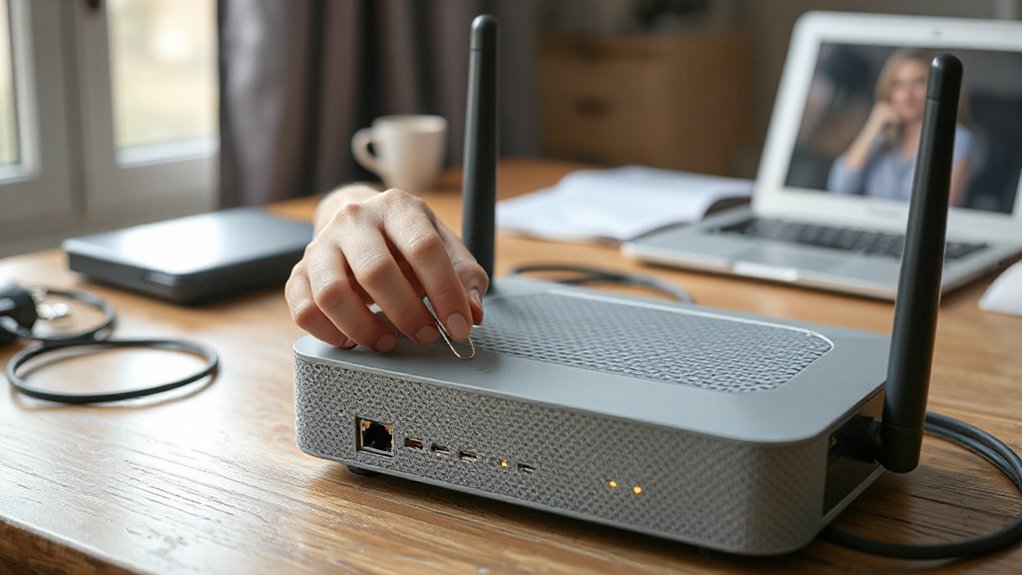
If your network’s slow, devices can’t connect, or settings are corrupt, you’ll want to reset your router. You can try a soft reboot first to clear temporary faults, or do a factory reset to restore defaults and remove persistent issues—but that erases custom settings. I’ll show when to use each method, how to back up and restore configs, step-by-step reset instructions for major brands, and tips to prevent repeat problems.
Key Takeaways
- Try a soft reboot first: power-cycle, use the web GUI Reboot, or SSH reboot to clear RAM without changing settings.
- Use the router’s factory-reset option only if configurations are irrecoverable, knowing it erases all custom settings.
- Back up your current configuration and document usernames, passwords, and firmware before performing a factory reset.
- After reset, verify LEDs, update firmware, restore the saved config, and reapply static IPs, DHCP reservations, VLANs, and port forwards.
- Reconnect devices by recreating SSIDs and encryption, test a known client, and reboot clients that fail to obtain IPs.
Why Resetting Your Router Helps
Why reset your router? You’ll clear transient faults that degrade router performance and resolve intermittent connectivity issues. Start by identifying symptoms: slow throughput, frequent drops, or devices failing to obtain IP addresses. A reset flushes RAM, restarts services, and reloads configuration from nonvolatile storage, removing temporary routing loops, memory leaks, and stalled processes. It won’t alter saved settings if you perform a controlled reset sequence; it merely restarts system daemons and renegotiates links with your ISP and clients. After resetting, verify link status, DHCP leases, and DNS resolution, then run throughput and latency checks to confirm restoration. Use logs to detect recurring faults indicating hardware aging or firmware bugs that require further action.
Soft Reboot Vs Factory Reset: Key Differences
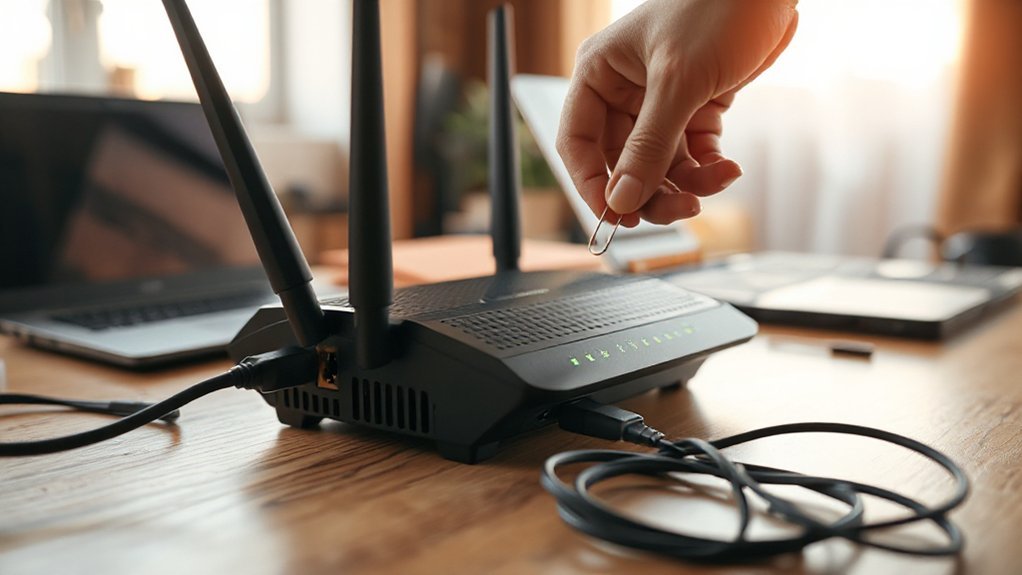
You can perform a soft reboot to temporarily restart the router and clear transient issues without changing settings. Use a factory reset only when you need a full wipe that restores default firmware, credentials, and configurations. Choose the soft reboot for quick troubleshooting and the factory reset for persistent configuration or security problems.
Soft Reboot: Temporary Restart
Although a soft reboot only restarts the router’s software and active processes, it won’t erase your settings or saved configurations. You use a soft reboot to clear memory leaks, refresh routing tables, and restore peak router performance without changing credentials or VLANs. To perform one, access the admin UI or power-cycle the device: choose Reboot in the system menu or unplug power for 10–15 seconds, then reconnect. Verify LEDs indicate normal operation and log back into the interface. After reboot, confirm DHCP leases, WAN connectivity, and device associations. Monitor for improved network stability and note any recurring faults that a soft reboot doesn’t fix. If issues persist, escalate to configuration review or a factory reset as last resort.
Factory Reset: Full Wipe
When a factory reset is performed, the router’s firmware returns to its original state and all user configurations, credentials, and stored data are irreversibly erased; this differs from a soft reboot, which only restarts active processes without altering settings. You should use a factory reset when persistent configuration errors, compromised credentials, or firmware corruption prevent normal operation. Procedure: back up current configuration, note ISP credentials, power-cycle device, locate the reset pinhole, press and hold per manufacturer timing, then wait for LED sequence indicating completion. After reset, reapply firmware updates, restore only verified settings, and change default passwords. Use factory reset benefits sparingly—it’s a last-resort step in troubleshooting connectivity that eliminates hidden configuration faults but requires full reconfiguration.
When to Choose a Factory Reset
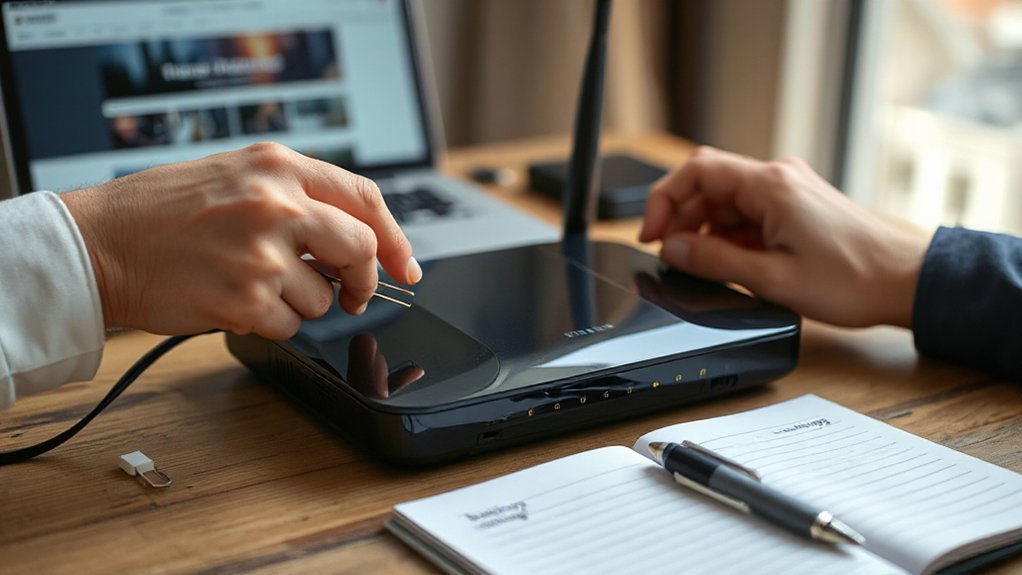
If troubleshooting steps, firmware updates, and configuration resets haven’t fixed persistent connectivity, security, or performance problems, opt for a factory reset. Evaluate factory reset scenarios: repeated intermittent drops, compromised credentials, corrupted settings after failed updates, or inability to access the admin interface. Don’t use a factory reset for transient outages, ISP issues, or single-device problems; run diagnostics and isolate the cause first. When you decide to reset, plan downtime, note custom network parameters you’ll need to reconfigure, and ascertain you can reconnect to the device physically if remote access fails. Use the router’s documented reset procedure to avoid hardware damage. After reset, apply the latest firmware, enforce strong credentials, and reconfigure minimal necessary services before restoring optional features.
Backing Up Your Router Settings First
Before you reset, export the current configuration file from the router’s web interface so you can restore settings later. Record any custom credentials (admin passwords, Wi‑Fi keys, and VLAN or VPN details) in a secure note. Also save the router’s firmware files and version number in case you need to reflash the same build.
Export Current Configuration
Because firmware updates or factory resets can erase custom settings, you should export your router’s current configuration before making changes. Log into the router’s admin interface, navigate to System or Maintenance, and locate the export process option. Select the full configuration file export to capture all settings (VLANs, DHCP, firewall rules, DNS, QoS). Choose a secure local folder and use a descriptive filename with date and device model. If the interface offers encryption or password protection for the configuration file, enable it. Verify the export completed by checking file size and attempting a re-import simulation on a test device or sandboxed instance if available. Retain at least one offline copy on encrypted media for recovery.
Note Custom Credentials
After exporting the configuration file, document any custom usernames, passwords, and shared secrets so you can restore administrative access after a reset. Record each custom username tied to its role or device, noting where it’s used (web GUI, SSH, VPN). For passwords, copy only hashed or encrypted forms if available; otherwise note creation requirements (length, complexity, allowed characters) and store a secure password that meets them. Catalog shared secrets and key identifiers separately from account credentials. Use a vetted password manager or an encrypted file with clear labeling and an offline backup. Verify your notes by logging in with each credential before resetting. Keep backups for a defined retention period and restrict access to administrators only.
Save Firmware Files
Download and store the exact firmware files that match your router model and current version so you can restore or reflash the device if a reset or upgrade goes wrong. Locate the vendor’s support page, confirm model and hardware revision, and download the factory and latest stable firmware images. Verify checksums (MD5/SHA256) and retain copies in at least two secure locations—local encrypted storage and an offline backup. Document the firmware filename, version, release notes, and download date. Before applying firmware updates, export your router’s configuration where possible and note custom settings tied to router security (VPN, port forwards, certificates). If you plan a factory reset, make sure you have the precise image required to prevent bricking and speed recovery.
How to Soft Reboot Any Router
A soft reboot restarts the router’s operating processes without erasing configuration or firmware, and you’ll use it to clear temporary glitches, restore routing tables, and re-establish connections quickly. Identify whether you’ll reboot via the web GUI, SSH/CLI, or physical power cycle. For GUI: log in, locate System or Administration, choose Reboot, confirm, and monitor status LEDs until normal. For SSH/CLI: connect, run the safe reboot command (e.g., reboot or /sbin/reboot), and watch console output. For power-cycle: gently power off, wait 10–30 seconds, and power on to allow capacitors to discharge and processes to reinitialize. After reboot, verify network performance, run basic troubleshooting techniques (ping, traceroute, status checks), and document any persistent issues.
How to Factory Reset Popular Router Brands
1 clear factory reset will restore your router to default settings and erase custom configurations, so back up your current settings and note ISP credentials before proceeding. For popular router models follow model-specific reset methods: locate the recessed Reset button, press and hold (10–30 seconds) with a paperclip until LEDs flash, then release. For some ISP-branded units power-cycle, then hold Reset during boot for factory mode. For enterprise-grade or mesh systems use the admin interface: navigate to System > Factory Reset and confirm. For routers with a recovery port follow vendor recovery instructions to upload firmware after reset. After any physical or web-based reset verify LED patterns match documentation. Use exact router models documentation and vendor reset methods to avoid bricking the device.
Restoring Settings and Reconnecting Devices
After a factory reset, you’ll restore your saved configuration or re-enter settings manually so devices can reconnect and services resume. Begin by accessing the router web UI or management app, load your backup file if available, and verify SSID, password, VLANs, and QoS values to maintain device connectivity and network performance.
- Confirm firmware is current, then upload saved config or apply settings stepwise.
- Recreate wireless profiles (SSID, encryption) and test one known client for successful authentication.
- Reapply static IPs, DHCP reservations, port forwards, and verify routing rules with ping/traceroute.
- Check connected-device list and remove unknown entries; reboot clients if they fail to obtain IPs.
Document the restored configuration and validate services (VPN, VoIP, streaming) to guarantee stable operation.
Tips to Prevent Future Router Problems
Now that you’ve restored settings and verified services, take steps to reduce recurrence by implementing preventive practices. First, schedule regular firmware updates: check the vendor portal, download signed releases, and apply updates during low-traffic windows. Enable automatic update checks if available, but verify post-update configurations. Second, enforce strong credentials and unique admin passwords; disable remote management unless required and log access attempts. Third, document your configuration and back up exports after stable changes so you can restore quickly. Fourth, monitor performance and set alerts for unusual traffic or repeated disconnects. Finally, confirm ideal router placement—elevate the device, avoid interference sources, and centralize location for balanced coverage—and periodically reassess placement as your environment changes.
Conclusion
Resetting your router can quickly fix connectivity and performance issues, but pick the right method. Use a soft reboot to clear temporary faults without losing settings; use a factory reset only when problems persist or when you need to remove all custom configurations. Back up settings first. Follow vendor-specific factory-reset steps, then restore your backup and reconnect devices. Regularly update firmware, secure admin access, and reboot periodically to reduce future issues.