

If autocorrect keeps changing what you mean, you can turn it off in a few taps or clicks depending on your device or app. You’ll learn the exact menus for iPhone, Android, Windows, macOS and common apps so you can stop unwanted corrections or re-enable them later — and a few quick tips to avoid new typos once it’s off.
Key Takeaways
- Open your device or app Settings, find Keyboard or Language & Input, and locate the autocorrect or predictive text option.
- On iPhone/iPad: Settings > General > Keyboard, then toggle off Auto-Correction (and Predictive if desired).
- On Android: Settings > System/General management > Languages & input, select your keyboard (e.g., Gboard), and disable Auto-correction or Predictive text.
- On Windows: Settings > Devices > Typing, turn off “Autocorrect misspelled words” and “Highlight misspelled words” as needed.
- On macOS: Apple menu > System Settings > Keyboard > Text, then toggle off “Correct spelling automatically,” and check per-app settings.
Why You Might Want to Disable Autocorrect

Although autocorrect can speed up typing, you might want to turn it off when it changes proper names, technical terms, or slang into something wrong or embarrassing. You rely on context, jargon, or intentional misspellings that autocorrect often misunderstands. If your personal typing habits include deliberate shortcuts, emojis, or domain-specific terms, autocorrect can interrupt your flow and force corrections. Similarly, your communication preferences—formal reports, creative writing, or casual chats—might suffer when words are altered without consent. Disabling autocorrect gives you full control, reduces miscommunications, and preserves tone. You’ll proofread intentionally rather than fight automated edits, and you’ll avoid awkward autocorrect failures that can undermine clarity or credibility in critical messages.
Turn off Autocorrect on Iphone and Ipad

On iPhone and iPad you can disable Auto-Correction in Settings to stop unwanted word changes while typing. You can also turn off Predictive Text if you don’t want word suggestions to appear above the keyboard. Follow the simple toggles in General > Keyboard to change both settings quickly.
Disable Auto-Correction Feature
If autocorrect keeps changing what you mean, you can turn it off in a few taps on your iPhone or iPad: go to Settings > General > Keyboard, then toggle off Auto-Correction. Once off, your device won’t automatically replace words, so you’ll rely more on your own spelling and typing accuracy. This change gives you control and lets you use autocorrect alternatives like third-party keyboards or dedicated spelling tools if you prefer suggestions without forced replacements. After disabling, test typing in Messages or Notes to confirm behavior. If you ever want suggestions without automatic edits, consider switching keyboards or adjusting settings rather than re-enabling auto-correction. This method is quick, reversible, and keeps your input exactly as you type.
Turn Off Predictive Text
Everyone who’s tired of suggested words popping up as you type can turn Predictive Text off in a few taps: open Settings > General > Keyboard, then toggle off Predictive. Turning it off stops the suggestion bar and prevents unwanted replacements while you type, which many users prefer for accuracy and control. You’ll lose some predictive text benefits like faster typing and context-aware suggestions, but you gain consistent text entry and fewer interruptions. If you ever want suggestions back, return to the same Keyboard settings and toggle Predictive on. Disabling suggestions also helps when you use specialized vocabulary, jargon, or multiple languages. Try it for a few days to decide whether the trade-off between speed and precision suits your workflow.
Turn Off Autocorrect on Android Devices
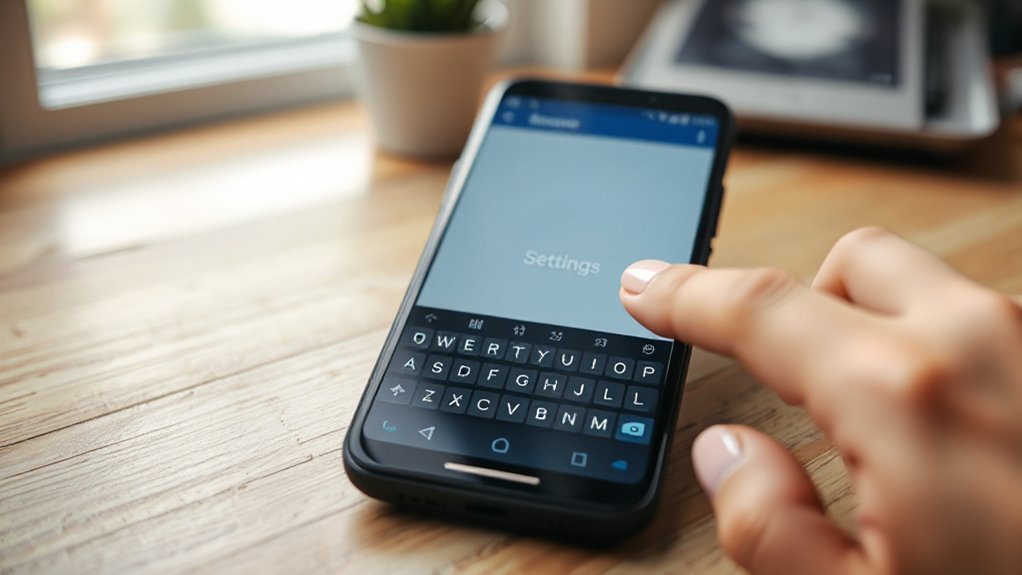
Because Android keyboards vary by manufacturer and app, the exact steps to turn off autocorrect can differ, but you’ll usually find the option in your keyboard settings; open Settings > System or General management > Languages & input, select your keyboard (like Gboard or Samsung Keyboard), then disable “Auto-correction” or “Predictive text.” Once you’ve opened the keyboard settings, review autocorrect settings and other typing options so they match your user preferences. On Gboard, toggle off “Auto-correction” and consider turning off “Suggest words” or “Next-word suggestions.” On Samsung Keyboard, disable “Auto replace.” If you use a third-party keyboard, check its app for similar switches. Restarting apps may apply changes immediately; you won’t need to reboot your device.
Disable Autocorrect in Windows and Microsoft Office
On a computer, autocorrect behaves differently than on phones, so you’ll want to check both Windows settings and the apps you use — especially Microsoft Office — to stop automatic replacements. In Windows settings, open Settings > Devices > Typing (or search “Typing settings”) and turn off “Autocorrect misspelled words” and “Highlight misspelled words.” That stops system-level corrections across many apps.
For Microsoft Word, open File > Options > Proofing. Uncheck “AutoCorrect” options you don’t want, or click “AutoCorrect Options” to remove specific replacements. Also disable “Check spelling as you type” if you prefer no suggestions. Repeat similar steps in other Office apps like Outlook. After changing settings, restart apps to guarantee the new behavior applies. You’re now in control of automatic corrections.
Disable Autocorrect on Macos
On macOS, you’ll find the autocorrect option in System Settings (Apple menu > System Settings > Keyboard > Text). Turn off “Correct spelling automatically” to disable system-wide autocorrect, and note that many apps also have their own Text or Spelling preferences where you can override this. Check per-app settings in Mail, Notes, or Pages if autocorrect still appears in specific apps.
System Preferences Path
If you want to disable autocorrect system-wide on macOS, open System Preferences (or System Settings on newer versions) and go to Keyboard > Text; there you’ll find the “Correct spelling automatically” checkbox you can uncheck to turn autocorrect off. From there, the path is straightforward: Apple menu → System Preferences/System Settings → Keyboard → Text. The system preferences layout and user interface vary slightly between macOS releases, but the Text section consistently contains spelling and substitution controls. You’ll also see options for smart quotes, dashes, and text replacement entries that can affect typing behavior. Use the search field in System Preferences if you don’t see Keyboard, or check Keyboard Shortcuts in Accessibility for alternate access methods.
Turn off Autocorrect
Although autocorrect can be handy, you can turn it off across your Mac in a few quick steps so it stops changing what you type. Open System Settings, go to Keyboard, then Text. Toggle off “Correct spelling automatically” to disable autocorrect system-wide. This prevents unexpected replacements and preserves your intended words.
- Open System Settings > Keyboard > Text.
- Disable “Correct spelling automatically.”
- Restart apps if changes don’t apply immediately.
Turning off autocorrect lets you choose autocorrect alternatives like third-party text expanders or manual correction, improving typing efficiency when you need accuracy. You’ll still get spell-check suggestions if you leave “Check spelling while typing” enabled, so you can correct intentionally without automatic replacements.
Per-App Settings
When you want autocorrect off in some apps but still enabled elsewhere, macOS lets you disable it per application so your typing behaves differently depending on context. To change a single app, open the app, go to the Edit menu, choose Spelling and Grammar, then uncheck Correct Spelling Automatically. That sets app specific controls without affecting other programs. Some apps offer their own customization options in Preferences or Settings—check Mail, Notes, or third-party editors for separate toggles. If an app lacks a menu option, use System Settings > Keyboard > Text to manage system-wide behavior, then re-enable autocorrect in apps you want corrected. This approach gives you precise control: disable where autocorrect interferes and keep it where it helps.
Turn Off Autocorrect in Popular Apps and Browsers
Because autocorrect behaves differently across platforms, you’ll need to change settings app by app or in each browser to stop unwanted corrections. Check each app’s preferences for keyboard or text settings; some keep an autocorrect history you can clear to remove learned replacements tied to your typing habits. In browsers, disable spellcheck or extension-based autocorrect in settings or extensions.
- Mobile apps: Open app settings → keyboard/input → toggle autocorrect off, then clear learned words if available.
- Desktop apps: Look under Edit or Preferences → Text/Input → disable autocorrect or predictive text for that app.
- Browsers: Go to Settings → Languages or Extensions → turn off spellcheck/autocorrect and remove typing-related extensions.
Repeat when you switch apps to maintain control.
Conclusion
Autocorrect can help, but it can also misinterpret what you mean. If you find it frustrating, turn it off on your device or app: iPhone/iPad via Settings > General > Keyboard, Android through Settings > System > Languages & input and your keyboard, Windows in Settings > Devices > Typing (or Office options), and Mac in System Settings > Keyboard. Don’t forget to restart apps after changing settings. Once it’s off, you’ll type exactly what you intend.