
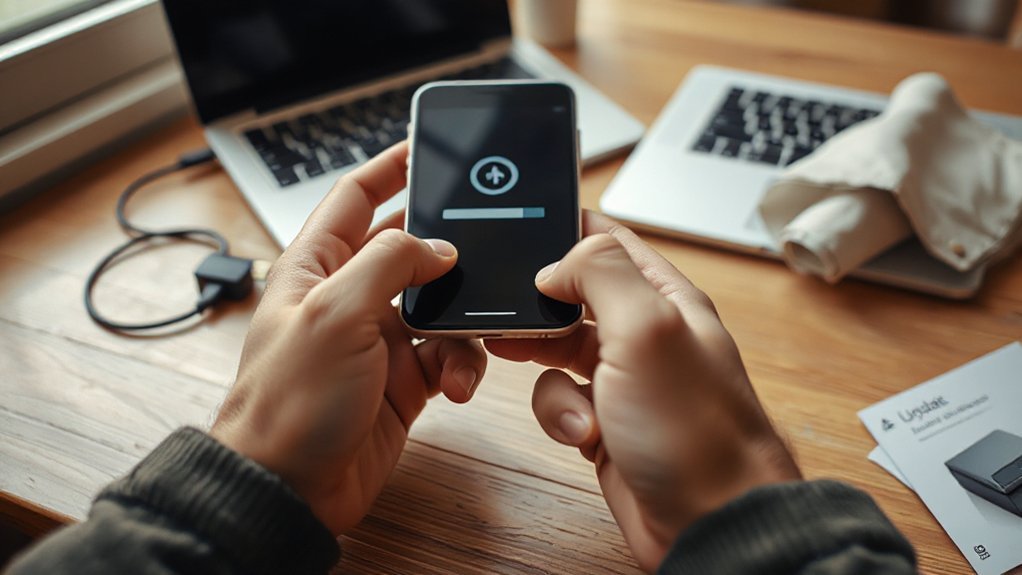
Keeping your phone updated keeps it secure and running smoothly, so you’ll want to make sure you know how to check for and install updates safely. Before you start, you’ll want a good Wi‑Fi connection, enough battery or a charger, and a recent backup. I’ll walk you through finding system updates on iPhone and Android, handling app patches, scheduling installs, and solving common problems—so you can update with confidence.
Key Takeaways
- Back up important data, ensure battery is charged (or plug in), and connect to stable Wi‑Fi before updating.
- For iPhone: go to Settings > General > Software Update and follow prompts or enable automatic updates.
- For Android: open Settings > System or About phone > Software update (varies by manufacturer), then download and install.
- Install security patches and minor updates promptly; they fix vulnerabilities and improve stability.
- If an update fails, free storage, restart the device, retry, and contact support if issues persist.
Why Updates Matter: System, Security, and App Differences
Because updates come in different types, you should know what each one does so you can prioritize them. You’ll see system updates that revamp the operating system, app updates that add features or fix bugs, and security patches that address vulnerabilities. Understanding update benefits helps you decide what to install first: critical security enhancements close holes attackers could exploit, so they deserve top priority. System updates can improve performance and compatibility, but you might schedule them when you have time. App updates often improve usability or fix crashes and are usually safe to apply promptly. By recognizing these differences, you’ll keep your phone running smoothly, protect your data, and avoid unnecessary interruptions while staying current.
Preparing Your Phone Before an Update

Before you start an update, make a few quick checks so the process goes smoothly: back up your important data, confirm your battery is charged or plug the phone in, verify you have enough free storage, and connect to a stable Wi‑Fi network to avoid data charges and interruptions. You’ll want to validate backup files are complete so you can restore settings or photos if something goes wrong. Check device compatibility for the update to avoid installing a package that won’t run well. Close apps and pause long transfers to reduce risk of conflict.
- Check backups: confirm cloud or local backup files are current.
- Free space: remove unused apps or large media to clear storage.
- Power & connect: keep the phone plugged in and on Wi‑Fi.
How to Check for System Updates on Iphone
Enable automatic update notifications under Software Update > Automatic Updates so you’ll get alerted when Apple releases new versions. You can toggle on Download iOS Updates and Install iOS Updates for hands-off installs overnight. Keep your device connected to Wi‑Fi and charged before installing. If an update fails, retry after restarting, and check storage in iPhone settings to free space if needed.
How to Check for System Updates on Android
Wondering whether your Android is up to date? You can check system updates quickly through Settings. Open Settings, go to System or About phone, then tap Software update or System update. You’ll see the current Android versions info and whether update notifications are enabled. If a new update is available, the screen will describe it; you won’t start installation here.
Follow these three simple steps:
- Open Settings → System or About phone → Software update to view available updates and Android versions details.
- Check the update notifications option in Settings → Notifications or Software update to make sure you get alerted when updates appear.
- Read the update description so you know what’s included before you decide to install.
Installing Security Patches and Minor Updates
When a security patch or minor update appears, you should install it promptly to keep your device secure and running smoothly. You’ll get brief notes about security enhancements and bug fixes; read them to understand the change. Connect to Wi‑Fi and charge your phone or verify sufficient battery before starting. Minor updates usually install quickly and won’t alter settings or app data, but you can back up important files if you prefer extra caution. Check your update frequency in settings to see how often your device receives patches and enable automatic installs when available. If an update fails, restart your phone and try again, or consult support if problems persist. Staying current reduces risk and improves stability.
Managing and Updating Apps Safely
Keeping your system up to date helps, but apps also need regular care to stay secure and perform well. You should review update notifications promptly, test major updates when possible, and avoid installing unknown apps. Check app permissions before and after updates so you know what data an app can access.
Keep apps updated, review changelogs, test major updates, and audit permissions to protect your data and performance.
- Review update notifications: open your store, read changelogs, and install trusted updates first.
- Audit app permissions: revoke unnecessary access (location, contacts, mic) to limit risk.
- Verify sources: only update apps from official stores or the developer’s site; avoid third-party APKs.
Enabling Automatic Updates and Scheduling Installs
If you want updates to happen with minimal fuss, turn on automatic updates and set install windows so your phone updates overnight or during low-use hours. Go to Settings > Software Update or similar, enable automatic updates, and allow downloads on Wi‑Fi to save data. Next, choose scheduled installs or a nightly time slot so installs occur when you’re not using the phone. You can usually pick a time range, like 2–4 AM, or a specific hour. Make sure your phone has enough battery or is charging during the scheduled installs. You’ll still get prompts for major upgrades if approval is required, but routine patches and app updates will install quietly. Review these settings occasionally to match your usage.
Troubleshooting Common Update Problems
Because updates can touch many parts of your phone, you may run into a few common hiccups — stalled downloads, failed installs, or apps misbehaving afterward — and knowing quick fixes will get you back on track. When you see update errors, stay calm and use simple troubleshooting tips: check your connection, free space, and restart the device. If a specific app breaks after an update, force-close it, clear its cache, and check for its own update.
- Restart and retry: reboot, reconnect to Wi‑Fi or mobile data, then attempt the update again.
- Free space and power: remove unused files, plug in your phone, and verify battery is above the required level.
- App-specific fixes: update or reinstall the affected app, or clear app data if issues persist.
Tips to Avoid Data Loss and Restore After an Update
Although updates usually go smoothly, you should plan for data protection so you won’t lose photos, messages, or documents if something goes wrong. First, create a full data backup before you start: use cloud services or local backups to save contacts, photos, app data, and settings. Verify the backup completed and that you can access key files. Next, note device-specific restore methods—platform backups, manufacturer tools, or third-party apps—and understand how to apply them. Keep your device charged and use a stable Wi‑Fi connection to reduce interruption risk. If an update fails, follow official recovery steps before wiping the device. Finally, test that critical items restored correctly; redo backups regularly so you’re always prepared.
Conclusion
Keeping your phone updated keeps it secure, fast, and compatible with the apps you use. Before updating, back up your data, connect to Wi‑Fi, and charge or plug in. Check system updates in Settings on iPhone or under System/About on Android, install security patches promptly, and update apps from their store. Enable automatic updates or schedule them for off‑hours. If something goes wrong, restore from your backup and follow troubleshooting steps calmly. Regular updates protect your device.