
If you want to remove apps from your iPhone, you can do it from the Home Screen, the App Library, or Settings. I’ll walk you through each quick method—delete or offload apps, reclaim space, and restore any you need—so you can tidy your layout and avoid accidentally losing important data.
Key Takeaways
- Press and hold an app on the Home Screen, tap “Remove App,” then “Delete App” to uninstall.
- Enter “Edit Home Screen” (jiggle mode) and tap the minus (-) icon to delete apps quickly.
- Swipe to the App Library, long-press an app, and choose “Delete App” or “Remove from Home Screen.”
- In Settings > General > iPhone Storage, select an app and tap “Delete App” to remove it and its data.
- Use “Offload App” to remove the app but keep its data, or reinstall deleted apps from the App Store.
Delete Apps From the Home Screen
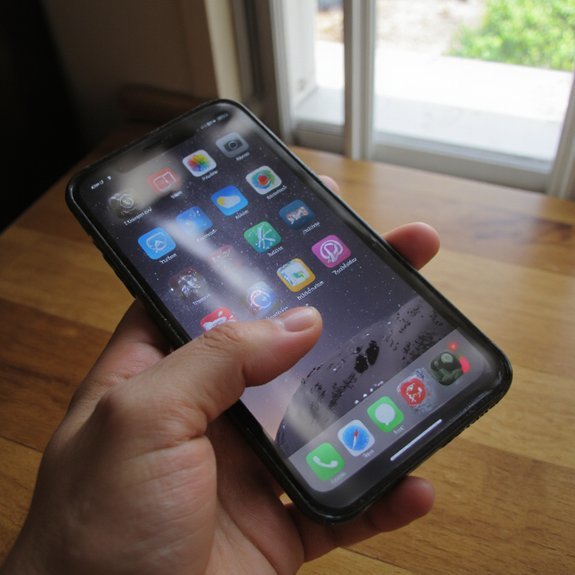
You can remove apps right from your Home Screen in a few quick taps. Tap and hold an app icon until a menu appears, then choose ‘Remove App’ or tap ‘Edit Home Screen’ to enter jiggle mode. In jiggle mode, tap the minus (-) on the app you’ll delete and confirm removal right away now. Use folders to group related apps—drag one icon onto another—to keep your home screen layout clean and focused. Move apps between pages by dragging them to the screen edge; that helps refine app organization without clutter. If you change your mind, reinstalling from the App Store is quick. Keep icons minimal and prioritize tools you use daily to accelerate workflows. These small tweaks let you experiment with different layouts, iterate fast, and maintain a productive, innovative Home Screen. Regularly review app frequency and remove duplicates to optimize performance and spark new creative ideas daily.
Remove Apps via the App Library
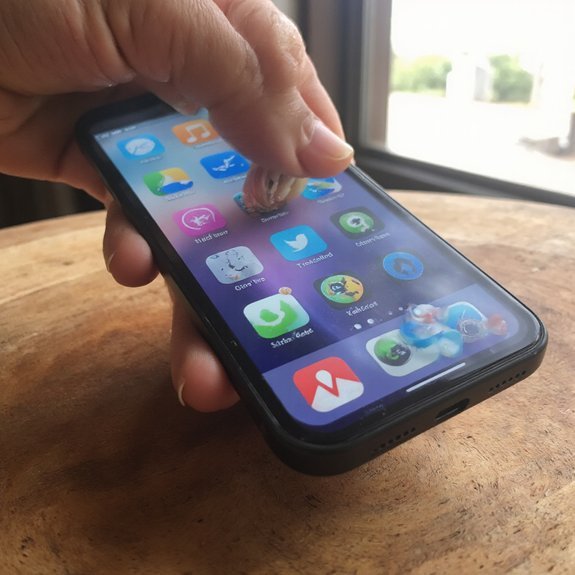
If you want a quicker way to uninstall apps without hunting through Home Screen pages, use the App Library: swipe left past your last Home Screen, locate the app (browse a category or tap the search field), press and hold the app icon, then tap “Delete App” and confirm. The App Library features make removal fast and maintain App organization tips so your layout stays clean. You’ll see grouped folders and a compact grid; pick the app directly from categories or search.
- Small category stacks showing related apps
- A single-file list when you use search
- Quick access to recently added apps
Pressing and holding also reveals “Remove from Home Screen” when you want to hide rather than delete. Use this flow when you want to iterate on your setup quickly, experiment with minimalist arrangements, and keep a smarter, more innovative Home Screen. Try it to streamline your experience.
Uninstall Apps Using Settings
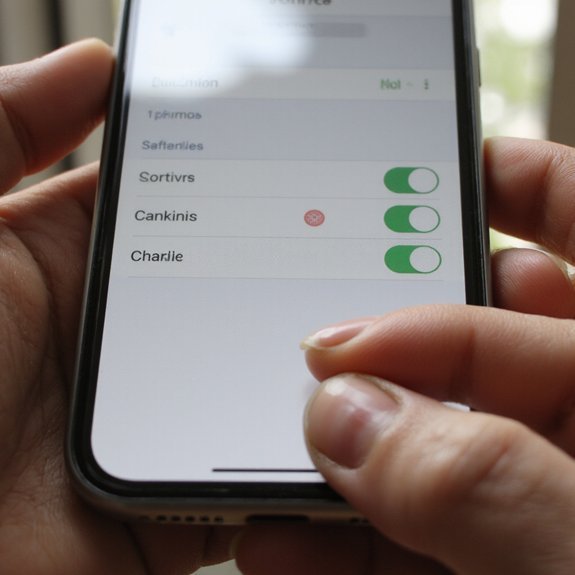
Start by opening Settings, tap General, then choose iPhone Storage to see an app-by-app list sorted by size. Scroll to find the app you want, tap it, and review the space it’s using; this view helps you prioritize deletions for storage optimization. Tap Delete App, confirm, and iOS will remove the app and its data. Repeat for any other apps that no longer serve you.
For precise app management, use this Settings approach when you want control over which apps and data leave your device. If an app stores large documents or caches, consider viewing its files before deleting so you don’t lose needed content. After deletions, check your available storage and restart your device if space doesn’t update immediately. This method gives you a deliberate, scalable way to free up space and streamline your iPhone for more innovative uses. You’ll reclaim space quickly and improve performance overall.
Offload Apps Vs Delete: What’s the Difference?
After removing apps in Settings, you’ll see iOS also offers offloading as an alternative. Offload conserves storage while keeping app data and icon, so you can reinstall without losing settings. Delete removes app and associated files permanently, freeing maximum space but removing shortcuts to data. Choose based on whether you plan to return to an app.
iOS lets you offload apps to save space while keeping data and icons, or delete them entirely
Follow these steps:
- Offload when you want to free space quickly but retain your data and preferences.
- Delete when you need maximum storage and don’t expect to reinstall.
- Use Automatic Offload to let iOS manage storage proactively.
This comparison highlights offload benefits for iterative app management and experimentation. You’ll save space, preserve progress, and restore apps instantly when needed. Deleting gives a clean slate and full storage recovery. Decide by intent: temporary pause (offload) or permanent removal (delete). Both methods fit modern, innovative workflows — pick one that matches your strategy.
Recover Deleted Apps and Restore Data
When you delete an app, you can usually get it back quickly—tap the App Store, go to your account or Purchased list, find the app, and reinstall; offloaded apps return simply by tapping their icon. Next, check whether data is available: open the app after reinstalling to see if your account, in-app purchases, or synced content appear. If not, use iCloud or the app’s backup options — sign into the same account and follow prompts for recovering data. For apps with local backups, restore from an iCloud or iTunes/Finder backup made before deletion: connect your iPhone, choose Restore Backup, and pick the right snapshot. You can also reset individual app settings within Settings to regain preferences or troubleshooting defaults when restoring settings. Finally, if recovery fails, contact the developer or Apple Support with your Apple ID and timestamps; they’ll guide you through advanced recovery or data export options.