
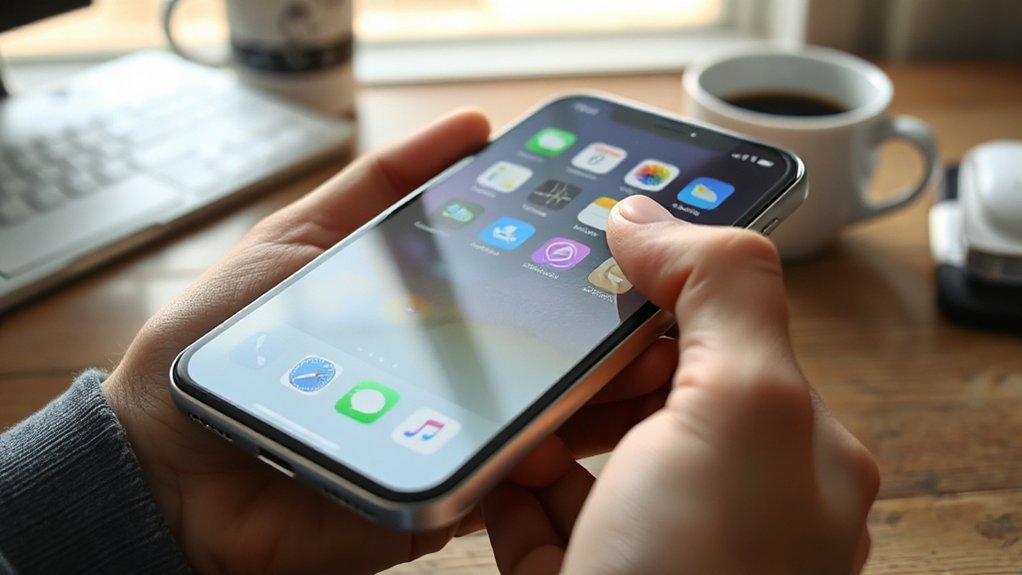
If you want to remove apps from your iPhone, you’ll find a few quick ways to do it depending on your model and settings. You can press and hold icons on the Home Screen, use the Settings app under iPhone Storage, or offload apps to keep their data — and there are extra steps if subscriptions or restrictions are involved. Keep going and I’ll walk you through each method and common gotchas.
Key Takeaways
- On Face ID iPhones, press and hold an app icon, tap “Remove App,” then confirm “Delete App” or “Offload App.”
- On Home Button iPhones, long-press until icons jiggle, tap the X or “Remove App,” and confirm deletion.
- To offload (keep data but remove app), go to Settings > General > iPhone Storage, tap the app, and choose “Offload App.”
- Cancel in‑app subscriptions in Settings → Your Name → Subscriptions before deleting apps that use paid services.
- If deletion is blocked, check Screen Time restrictions under Settings > Screen Time > Content & Privacy Restrictions.
Ways to Remove Apps From an Iphone With Face ID
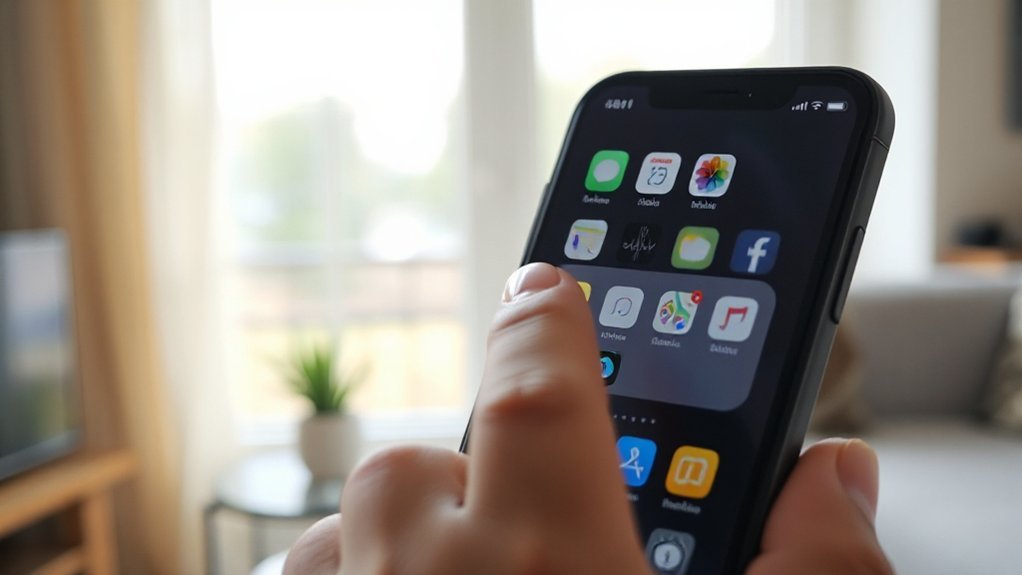
If your iPhone uses Face ID, you can quickly remove apps right from the Home Screen or through Settings; both methods are fast and only take a few taps. You’ll use Face ID to access, then press and hold an app icon until a menu appears; choose “Remove App” and confirm to delete or offload. For app management via Settings, open Settings > General > iPhone Storage, tap an app, then select “Delete App” or “Offload App” to free space while keeping data. Offloading removes the app binary but preserves documents and data. Deleting removes everything. You can also tidy multiple apps by long-pressing and entering jiggle mode, then tapping the minus sign to remove them quickly.
Removing Apps on Iphones With a Home Button
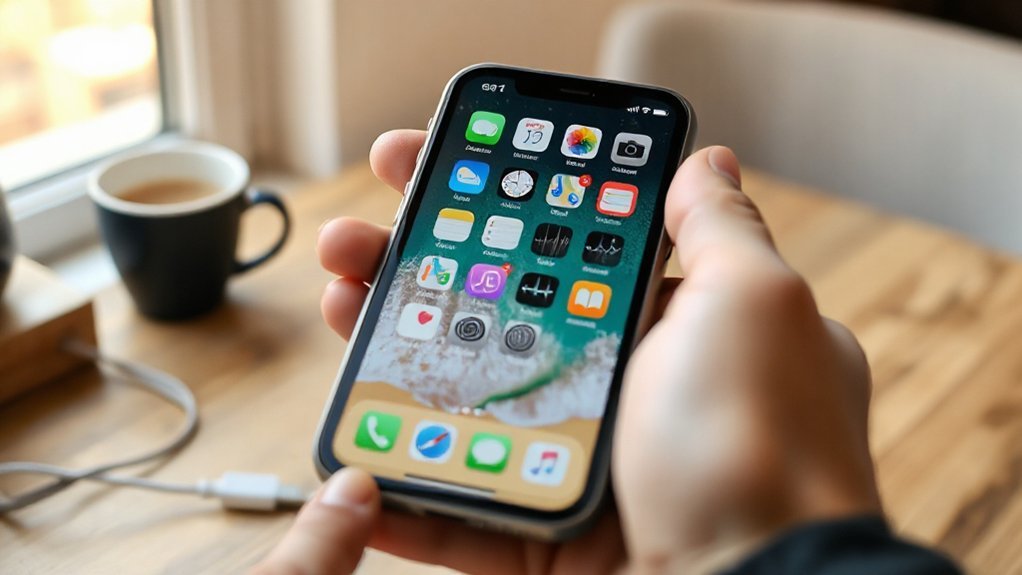
On iPhones with a Home button, you can remove apps directly from the Home Screen or through Settings with just a few taps. You’ll use either the long-press wiggle method for quick app deletion or Settings when you need precise control, including removing default apps where allowed. Follow these clear steps:
- Long-press an app until icons jiggle, tap the X or Remove App, confirm to delete.
- Open Settings > General > iPhone Storage, tap an app, choose Delete App for targeted removal.
- For built-in apps you can remove, long-press or use Settings; some system apps can be removed but may reinstall with updates.
These options give you fast, predictable control over removing default apps and nonessential items.
Difference Between Deleting and Offloading Apps
Although both free up space, deleting an app removes the app and all its data from your iPhone, while offloading only removes the app binary but keeps your documents and settings so you can reinstall later without losing progress. Choose deleting when you want to remove every trace: you’ll reclaim maximum storage and clear cached data, but you’ll lose local files and app-specific settings. Use offloading for smart app management when you expect to return to an app; iOS frees the app’s storage while preserving user data, which supports quicker recovery and less setup. For storage optimization, enable Offload Unused Apps or offload individual apps in Settings > General > iPhone Storage. Review each app’s size and purpose before deciding.
Handling Apps With Subscriptions and App Store Ties
When an app ties into subscriptions, purchases, or cloud accounts, you’ll need to check a few things before deleting so you don’t lose access or keep paying for service you don’t use. Start by confirming whether the app uses in‑app subscriptions or links to an external account, and review app store guidelines for cancellation steps.
- Check subscription management in Settings → Your Name → Subscriptions; cancel active plans before removal.
- Verify purchases and cloud data: sign out or export content to avoid losing files tied to the app.
- Confirm account closure with the developer if the app stores data server‑side, and note any refund or reactivation policies per app store guidelines.
Delete only after subscriptions and data are secured.
Troubleshooting Restrictions and Built‑in Apple Apps
After you’ve handled subscriptions and backed up any app data, you may still run into limits that prevent deletion — especially with Screen Time restrictions or built‑in Apple apps.
First, check app restrictions: open Settings > Screen Time > Content & Privacy Restrictions > Allowed Apps and make sure the app isn’t blocked. If Screen Time is enabled by someone else, ask for the passcode or have them change settings. Next, handle built in apps: some Apple apps can’t be fully removed but can be offloaded or hidden. To offload, go to Settings > General > iPhone Storage, select the app, and tap Offload App. To hide, remove it from the Home Screen (long press > Remove App > Remove from Home Screen). Restart your iPhone and try deletion again.
Conclusion
You’ve got easy options: press and hold an app on Face ID iPhones or long‑press on Home‑button models, then pick Remove App, or go to Settings > General > iPhone Storage to Delete or Offload. Deleting removes app data; offloading keeps documents and settings. Check subscriptions and App Store ties before deleting paid apps, and review Screen Time or configuration profiles if you can’t remove built‑in apps. Use these steps to manage storage and keep only what you need.