
If you prefer a darker interface to reduce eye strain or save battery, you can switch most devices and apps to Dark Mode in just a few steps. You’ll find the setting in system display options or individual app themes, and it often syncs across devices when enabled. Keep going to see exact steps for iPhone, Android, Windows, macOS, browsers, and popular apps so you can apply it where it matters.
Key Takeaways
- Open your device or app Settings, then find Display, Appearance, or Theme to toggle Dark Mode on or off.
- On iOS, go to Settings → Display & Brightness and choose Dark, Automatic, or schedule by time.
- On Android, open Settings → Display (or Appearance) and enable Dark Theme or set a sunset/custom schedule.
- In Windows, open Settings → Personalization → Colors and select Dark (or Custom to mix system/app modes).
- For browsers and apps, enable their built-in dark theme or install an extension like Dark Reader for sites without native support.
Why Choose Dark Mode
Comfort: Dark mode reduces the amount of bright light your eyes have to process, especially in low-light environments, so you’ll often feel less strain and fatigue. You’ll notice reduced eye strain during evening reading or long sessions, which improves focus. Beyond comfort, dark interfaces can extend battery life on OLED and AMOLED screens because fewer pixels need full brightness, so your device may last longer between charges. You’ll also shape your aesthetic preference: dark themes often look sleek and modern, letting content pop while maintaining subtlety. Finally, dark mode can enhance overall user experience by offering consistency across apps and reducing visual distractions. Try it for a few days to judge comfort, battery, and style trade-offs.
Dark Mode on Ios (Iphone & Ipad)
If you liked the comfort and battery benefits above, you’ll find iOS makes switching to dark mode fast and flexible on both iPhone and iPad. You’ll open iOS settings, tap Display & Brightness, then choose Dark to apply system-wide. You can set Appearance to Automatic to follow sunset or a custom schedule. For quick access, add Dark Mode to Control Center.
- Use iOS settings > Display & Brightness to flip modes instantly.
- Enable Automatic to switch at sunset or on a schedule.
- Add the Dark Mode control to Control Center for one-tap toggles.
- Explore iPad customization for per-app appearance where supported.
These steps keep your display comfortable, save battery on OLED screens, and let you tailor appearance across apps.
Dark Mode on Android Devices
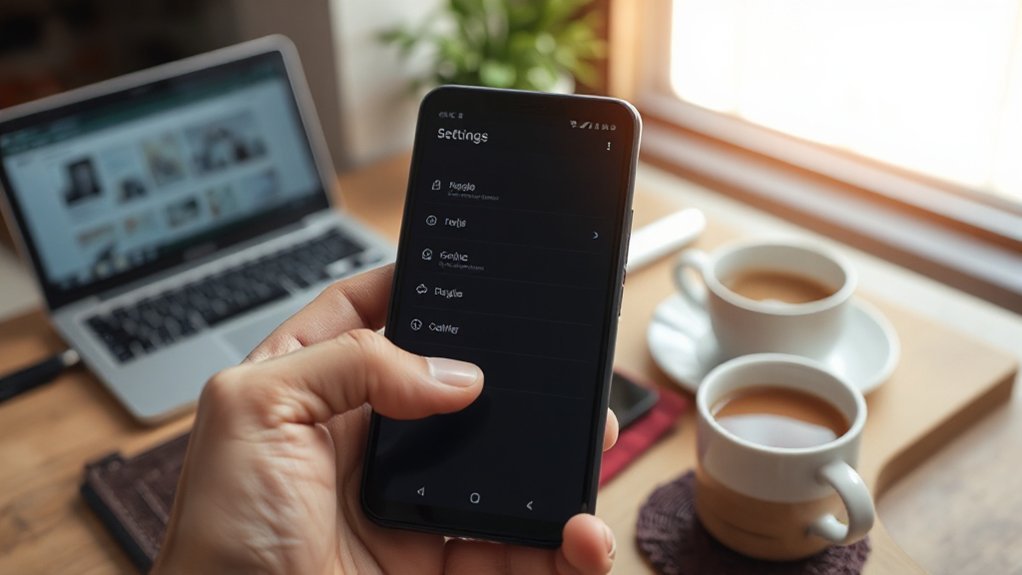
On Android, you can enable a system-wide dark theme that turns supported menus and settings dark across the device. You’ll also find app-specific dark options for apps that let you override the system setting. Finally, you can schedule dark mode to turn on automatically at sunset or during custom hours.
System-Wide Dark Theme
While many apps offer their own dark themes, Android’s system-wide dark mode lets you switch your entire device to a darker color scheme with a single setting, reducing eye strain in low light and saving battery on OLED screens. You’ll find this in system preferences under Display or Appearance. Turn it on to apply a cohesive look across supported system UI and apps, improving visual comfort and consistency.
- Open Settings > Display (or Appearance)
- Toggle Dark Theme (or Night Mode) on
- Schedule by Sunset to Sunrise or a custom time
- Combine with Battery Saver for extra power savings
After enabling, check quick settings for a one-tap toggle. You can revert anytime without affecting app-specific choices.
App-Specific Dark Settings
Because some apps manage their own appearance, you can override the system-wide dark theme per app to get the look you prefer in each one. Open an app, go to its Settings or Preferences, and look for Appearance, Theme, or Display. Toggle Dark, Light, or System default as the app allows. Some apps offer automatic contrast or a separate night mode—check those options to refine how the app renders content. Changing app preferences preserves your chosen look without affecting other apps, so you can mix dark interfaces for reading apps and light ones for productivity tools. This per-app control improves accessibility and overall user experience by letting you tailor visibility, battery use, and comfort on a case-by-case basis.
Scheduling Dark Mode
Scheduling Dark Mode on Android lets you automatically switch between light and dark themes at set times or based on sunset and sunrise, so you don’t have to toggle it manually. You can set scheduling preferences in Settings > Display > Dark theme or use Quick Settings. Choose a fixed time range or Sunset to Sunrise to match your local time zone. This gives you dark mode benefits like reduced eye strain and battery savings without thinking about it.
- Set Sunset to Sunrise to follow natural light cycles
- Pick custom start and end times for your routine
- Use per-app overrides if an app ignores system theme
- Test changes at night to confirm comfort and battery impact
Adjust anytime to suit your schedule.
Dark Mode in Windows 10 and 11
If you prefer a darker interface to reduce eye strain or save battery on OLED screens, Windows 10 and 11 make switching to Dark Mode quick and straightforward. Open Windows settings (press Win + I), select Personalization, then Colors. Choose Dark under “Choose your color” to apply a system-wide theme for File Explorer, Settings, and supported apps. For app-specific control, open Apps & features or app settings to adjust independently. In Windows 11, you can also pick Custom to mix Dark system elements with Light apps. Use Accessibility features for higher contrast or inverted colors if you need stronger visual adjustments; find these under Settings > Accessibility (or Ease of Access in Windows 10). Restart any apps that don’t update immediately.
Dark Mode on Macos
When you want a darker interface across macOS to ease eye strain or save battery on laptops with OLED displays, open System Settings (or System Preferences on older macOS versions) and choose Appearance, then select Dark; your menu bar, Dock, built-in apps, and supported third-party apps will switch immediately. You can also set Auto to match nightfall or schedule Dark to start at sunset. Use macOS preferences to control accent and highlight colors so Dark feels cohesive.
- Turn on Dark in Appearance for system-wide effect.
- Enable Auto to switch with time of day.
- Use Night Shift alongside Dark to reduce blue light.
- Check apps’ own settings if they don’t follow system theme.
Dark mode benefits include reduced glare and a polished look without extra steps.
Dark Mode in Popular Browsers (Chrome, Firefox, Edge, Safari)
You can turn on a browser dark theme in Chrome, Firefox, Edge, and Safari to change the interface to dark colors. If a site doesn’t respect the theme, you can enable each browser’s “force dark” or “night mode” option to invert or restyle page content. Follow each browser’s settings to toggle the theme and the forced dark option as needed.
Enable Browser Dark Theme
Most mainstream browsers let you switch to a dark theme in just a few clicks, and we’ll cover the exact steps for Chrome, Firefox, Edge, and Safari so you can pick the method that fits your device and preference. You’ll open browser settings, find appearance or themes, and use theme customization to apply a built-in dark theme or sync with your OS dark mode. Each browser labels options differently, but the flow is similar: settings > appearance/themes > select dark. If you want automatic switching, enable “use system theme” where available.
- Chrome: Settings > Appearance > Theme or use Chrome Web Store
- Firefox: Options > General > Language and Appearance > Themes
- Edge: Settings > Appearance > Theme
- Safari (macOS): System Preferences > General > Appearance
Force Dark for Websites
Although browser themes only change the UI, you can force a dark appearance on websites themselves so pages designed with light backgrounds render darker and easier on the eyes. You’ll find built-in options and extensions across Chrome, Firefox, Edge, and Safari to flip site colors, improving readability and reducing eye strain — key dark mode benefits. In Chrome and Edge, enable “Force Dark Mode for Web Contents” via chrome://flags or edge://flags. In Firefox, set layout.css.prefers-color-scheme.content-override in about:config or use a dark theme extension. Safari relies on Smart Invert or reader mode; third-party extensions add site-level control. Extensions like Dark Reader offer granular website customization: toggle sites, adjust brightness, contrast, and font settings. Test changes and exclude sites where forced dark breaks layout.
Dark Mode in Common Apps (Twitter, YouTube, Gmail, Slack)
When you switch on dark mode in popular apps like Twitter, YouTube, Gmail, and Slack, the interface becomes easier on the eyes and can save battery on OLED screens. You can toggle each app’s theme in settings: choose system default or force dark. Twitter dark mode offers dim and lights-out options; YouTube dark mode swaps the bright player and menus for a dark background; Gmail dark mode applies to the app and web when enabled; Slack dark mode changes sidebars and message panes for lower contrast. Use in-app theme controls or let your device manage them.
- Twitter dark mode: Settings and privacy → Display
- YouTube dark mode: Settings → Appearance
- Gmail dark mode: Settings → Theme
- Slack dark mode: Preferences → Themes
Troubleshooting and Tips for Dark Mode
If you run into issues or want the best experience with dark mode, start by checking app and system theme settings, screen brightness, and battery or accessibility options — these often cause inconsistencies or poor contrast. Next, identify the problem: low contrast, unreadable text, or mixed light/dark elements. For low contrast, increase brightness slightly or enable high-contrast text in accessibility. If apps ignore system dark mode, toggle their individual theme or update them. For colors that look off, switch between pure dark and AMOLED/true black if available. Clear app cache, restart the device, and install updates to fix glitches. Remember the dark mode benefits: reduced eye strain and potential battery savings on OLED screens. Test changes and keep a simple backup setting you can revert to.
Conclusion
Dark Mode reduces eye strain in low light and can save battery on OLED screens. You’ve seen how to enable it on iOS, Android, Windows, macOS, browsers, and popular apps. Try system-level dark first so apps follow it automatically; if an app ignores system settings, check its in-app Theme or Display options. Use scheduled or adaptive dark to switch at night, and update apps and OS if colors look wrong. Enjoy the easier viewing.